
Upload: live, pre-order or draft
Put products in your store as live listings, pre-orders or drafts, with stock and sales channels set for you.
On this page
Before you start
- Anyone on your store's team can do this.
- Plans: All plans. Credits: None. The product was counted when it was fetched.
Steps
Press Upload … live (or as drafts) on Review. Each product shows its progress, then Live or Draft with its price and stock.
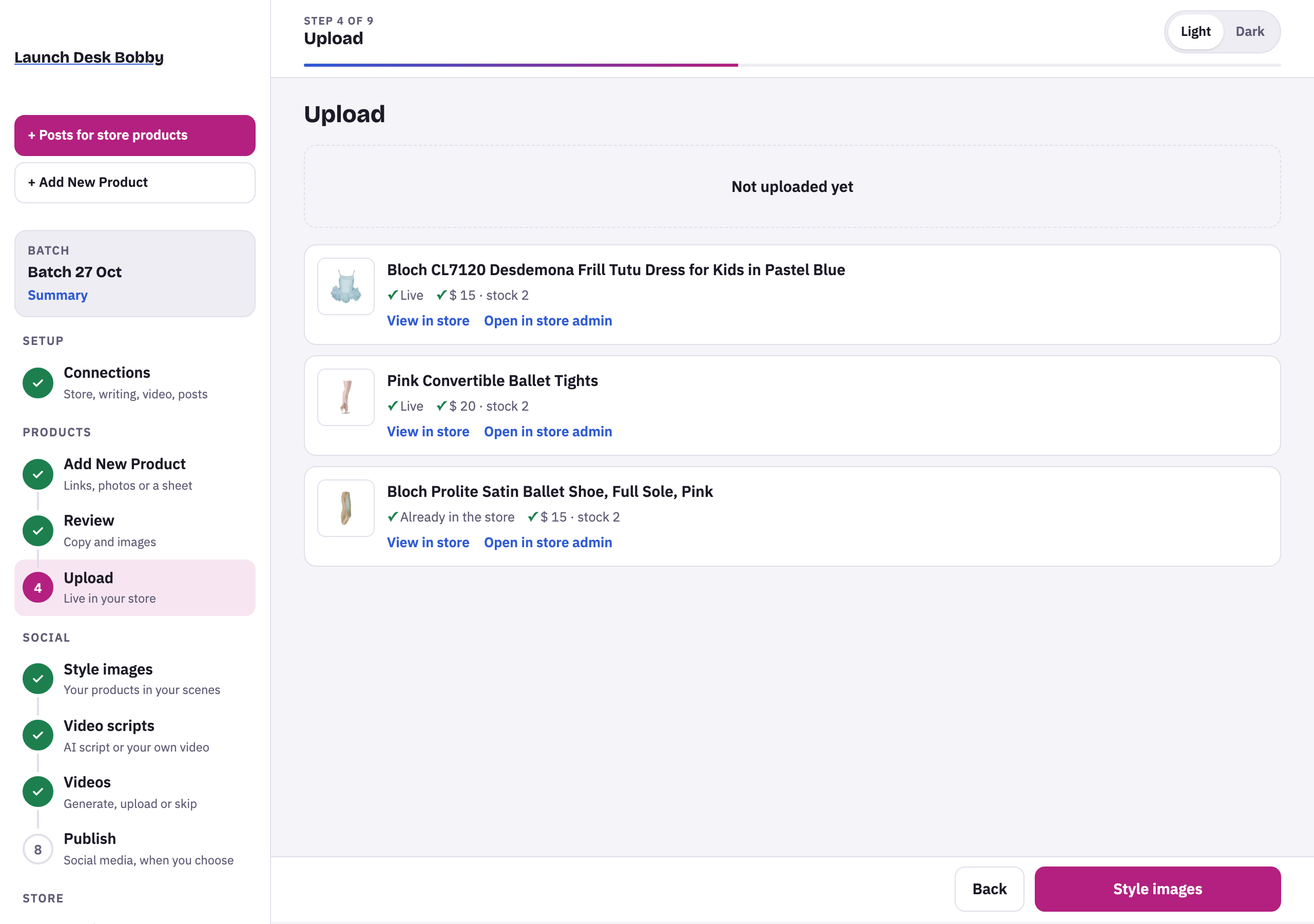
How each listing type uploads
- In stock: published to your sales channels, with your stock.
- Pre-order: published too. Launch Desk adds what you chose in Settings: a title mark like [PRE-ORDER], a pre-order note and a tag. Or, if you use a pre-order app, it leaves those to the app (adding the tag, or uploading with stock 0, as you chose).
- Draft: saved in your store but not published anywhere.
What’s set for you
- Stock: each product’s own, else the batch’s, at your store’s main location.
- Sales channels: all of them, except any listed in Sales channels to leave out (Settings › Catalogue).
- Vendor, product type and tags: from the product and your settings, plus the batch’s tags.
- Photos: only the ones you ticked, each with its description.
Products already in your store (same SKU or web address) are never listed twice.
Tips and limits
TipView in store opens the product page; Open in store admin opens it in Shopify.
If something goes wrong
Couldn't reach your store. Nothing was uploaded. Try again in a few minutes.
Your store didn't answer. Press Try again after a few minutes.
Your store has no active location to keep stock at. Add one in Shopify (Settings → Locations), then upload again.
Add a location in Shopify, then press Try again.
Already in the store
A product with the same SKU or web address is already there, so it wasn't uploaded again.