
Add products from a spreadsheet
Add up to 100 products at once from a CSV file, with photo links or a supplier link per row.
On this page
Before you start
- Anyone on your store's team can do this.
- Plans: All plans. Credits: Each product counts once against your plan's monthly products.
Steps
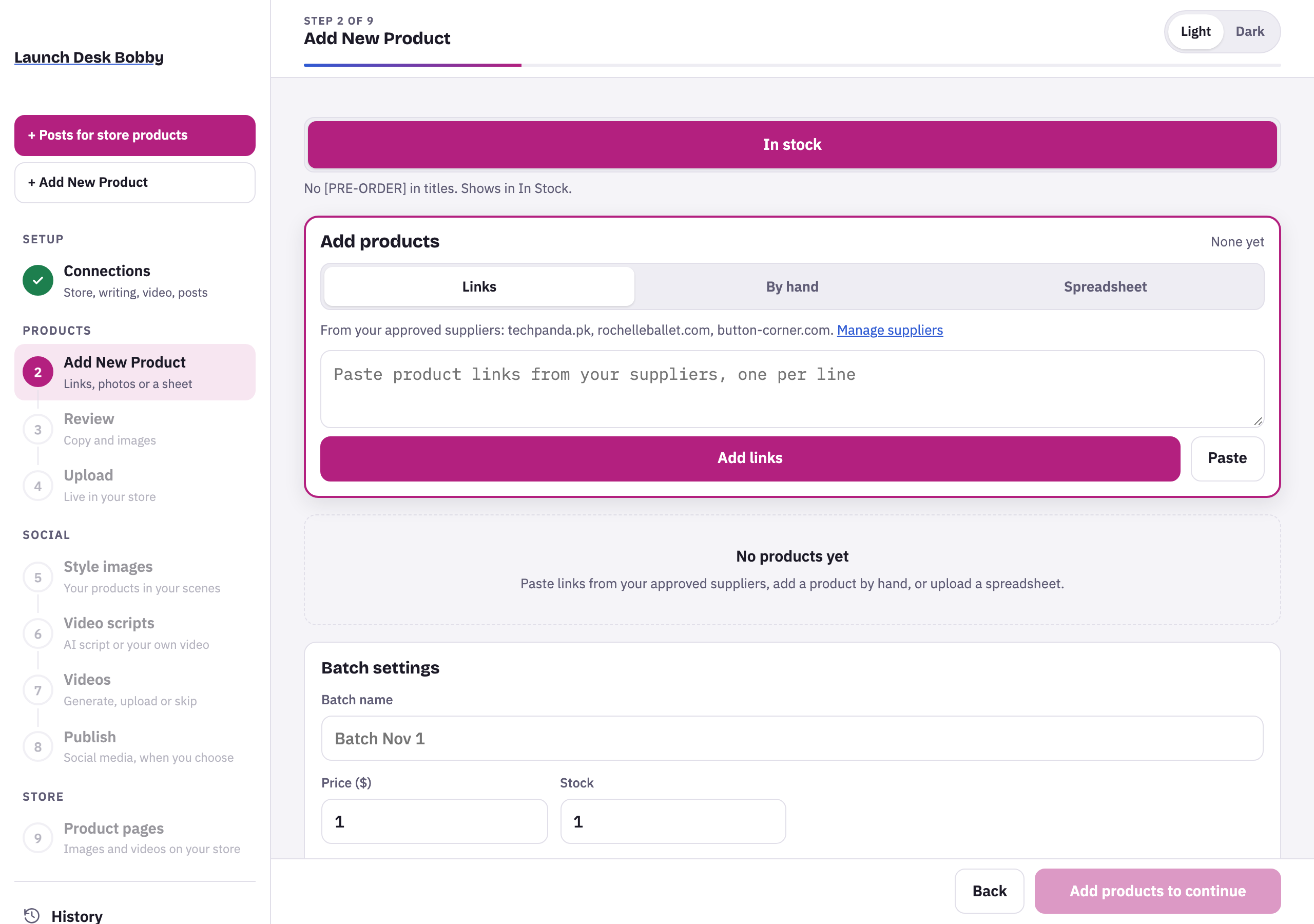
- On Add New Product, choose the Spreadsheet tab and download the template (CSV, with example rows).
- Fill it in with Excel, Google Sheets or Numbers: one product per row, with photo links in the Image columns or a supplier Link instead. Replace the examples.
- Save it as CSV, choose it under Spreadsheet (CSV), tick that the products and photos are yours or ones you’re authorized to use, and press Add from sheet.
The template’s columns
Name, Description, Brand, SKU, Image 1–3, Link, Price, Stock, Material, Size, Colour. Other common names are understood too, such as Title, Vendor, Variant SKU, Image Src and Quantity. Rows with the same SKU as one already in the batch are skipped.
Tips and limits
TipA Shopify product export works as it is. Extra rows for the same product only add photos.
TipA row with only a supplier link is added like a pasted link.
LimitUp to 100 products and 1 MB per file. Split bigger sheets.
If something goes wrong
Couldn't find a Name (or Title) column, or a product Link column.
Start from the template, or name a column Name (or Title), or Link.
Row …: no photo links or product link; add photos to the sheet, or add it by hand.
Add photo links in the Image columns, or a product link, for that row.
Row …: … isn't an approved supplier, so its link wasn't used.
An owner adds the website in Settings › Suppliers, then upload the sheet again.