Adjust a product image
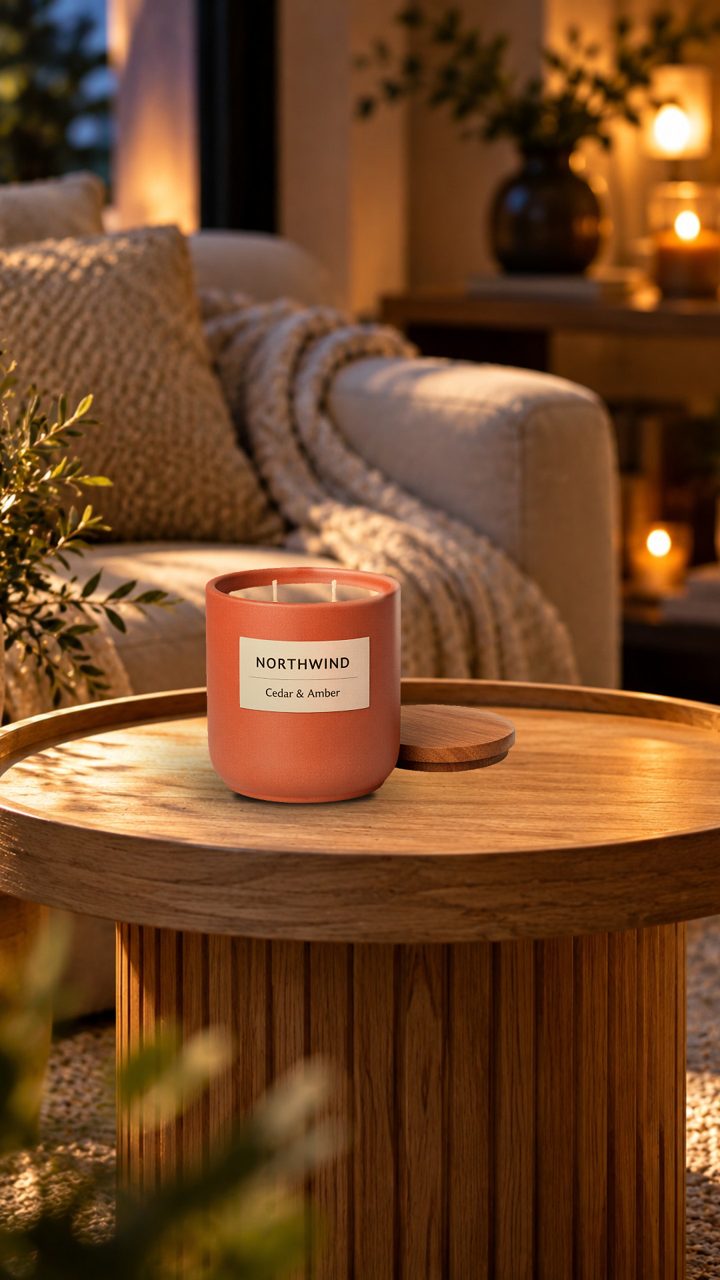
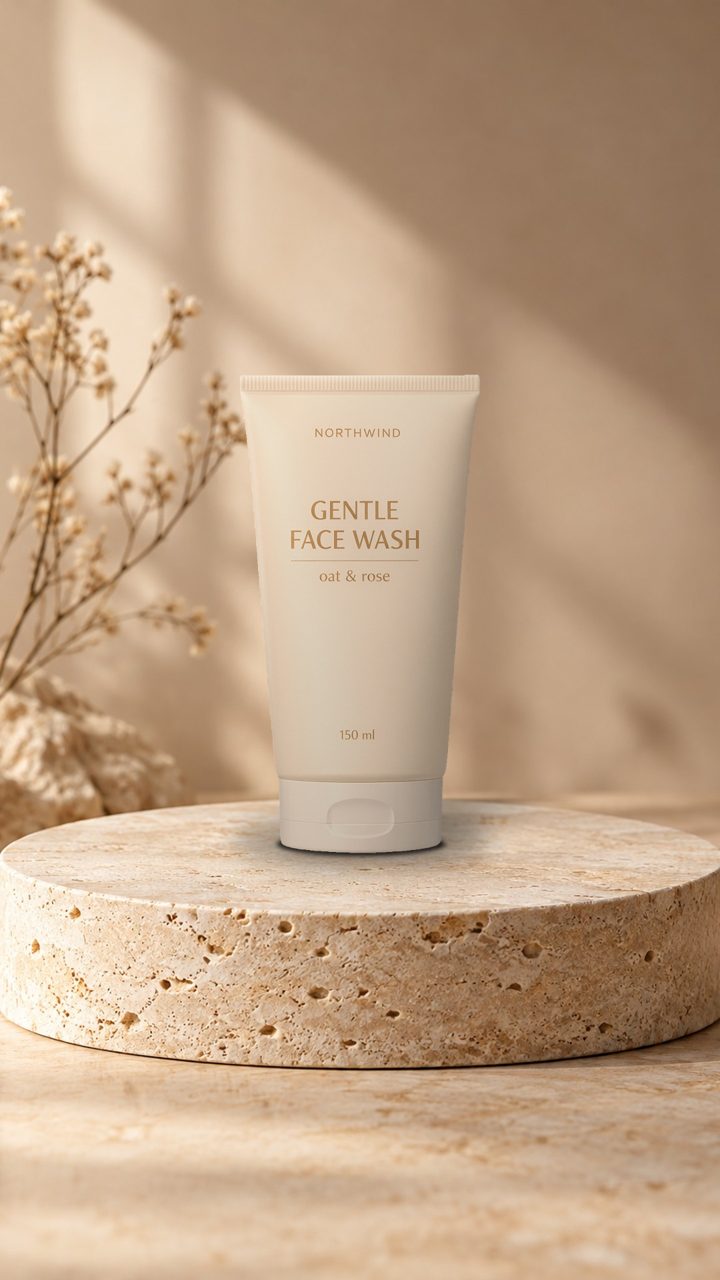
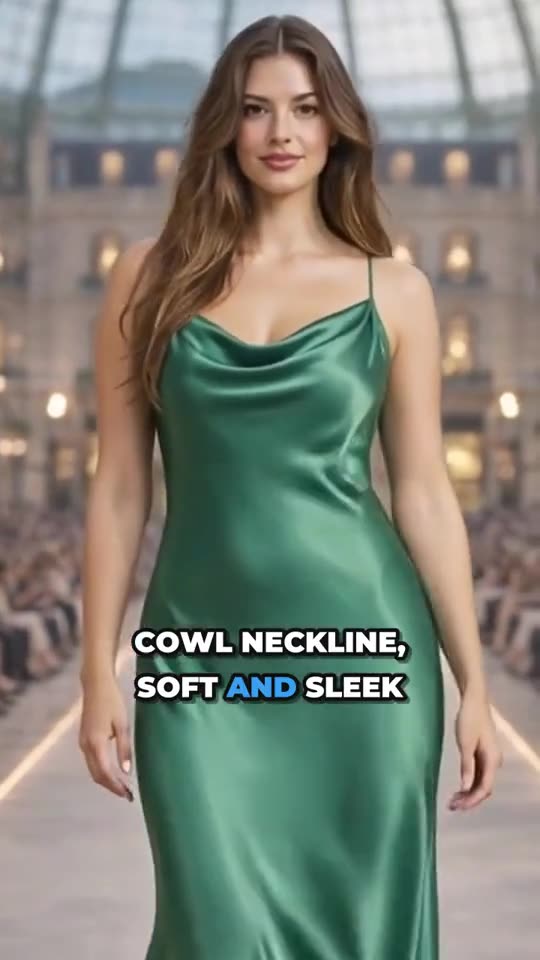
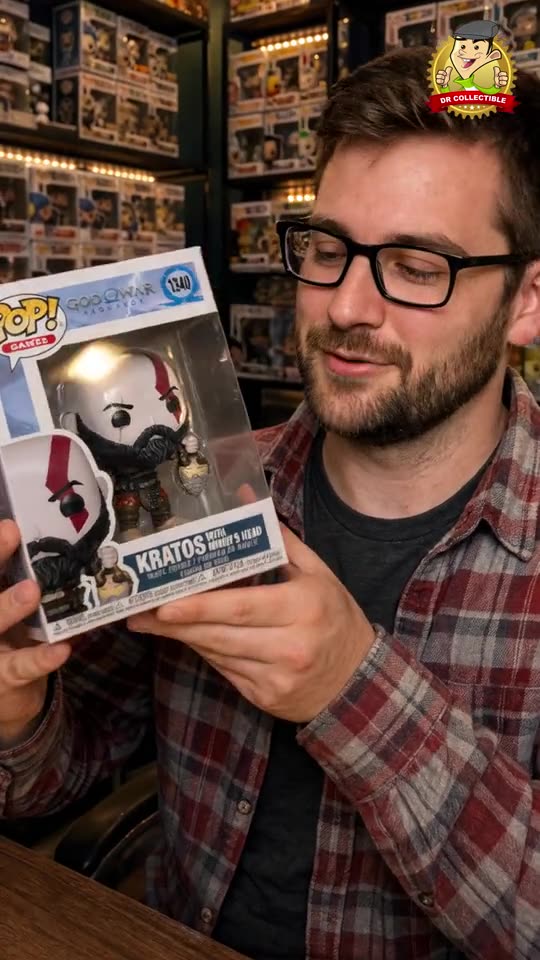
Make the product bigger or smaller in its photo, or keep the whole photo, with a button or in your own words.
On this page
Before you start
- Anyone on your store's team can do this.
- Plans: All plans. Credits: Free.
Steps
- On Review, press Adjust under a photo.
- Press Fill the frame, Bigger, Standard, Smaller or Whole photo. Or type what you’d like, such as “make the comic fill the image”, and press Apply.
- The photo is made again from the original. Adjust it as many times as you like.
Your default framing for every product is in Settings › Product images.
Tips and limits
LimitAdjust changes size and framing only. It can't remove objects, change colors, retouch, rotate or add text.