Add products from links
Paste product pages from your approved suppliers, other Shopify stores or Funko. Launch Desk reads the photos, price, specs and choices for you.
On this page
Before you start
- Anyone on your store's team can do this.
- The supplier's website in Settings › Suppliers (an owner adds it, confirming you're authorized to sell their products)
- Plans: All plans. Credits: Each product counts once against your plan's monthly products when it's fetched. Trying again is free.
Steps
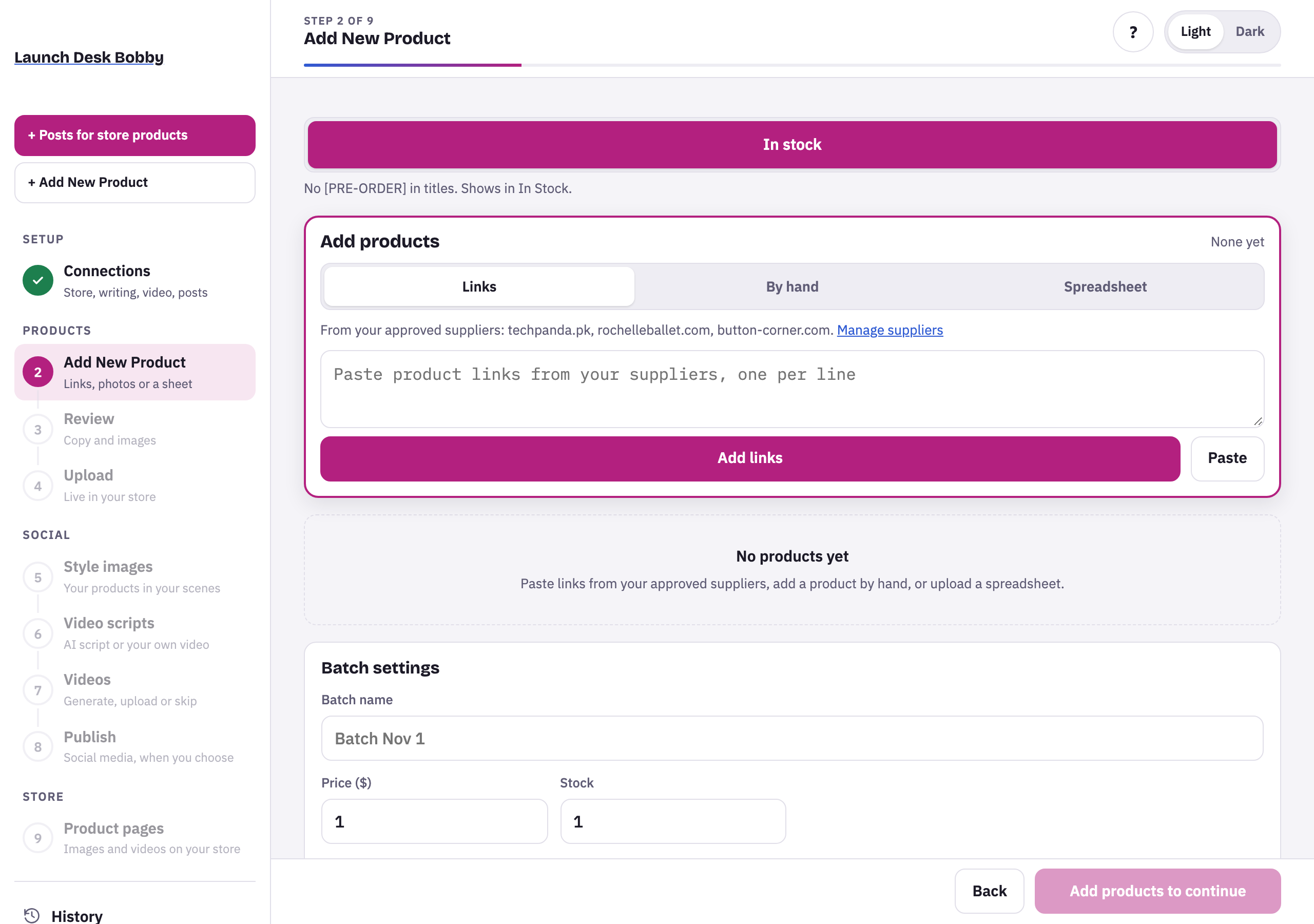
- Press + Add New Product, then the Links tab. The line above the box lists your approved suppliers; Manage suppliers opens Settings.
- Paste the product pages, one per line, and press Add links.
- Each link appears in the list with its name and picture. Links that can’t be used say Not supported, with the reason.
- Press Fetch when you’re ready. Launch Desk prepares the products and opens Review.
What Launch Desk reads
- Supplier web pages: the name, description (facts only), brand, SKU, price, photos, every spec with its units, and the choices a shopper picks from (colors, sizes, styles). The maker of a part, like Swarovski crystals, is a spec, not the product’s brand.
- Other Shopify stores: the title, description, vendor, SKU, price, photos and product type.
- Funko: the name, photos, licence, series, box number and exclusivity, with Funko as the brand.
Nothing is made up: anything the page doesn’t say is left out. The listing text is then written in your store’s own words.
The SKU
Launch Desk keeps a SKU you typed, else uses the supplier’s, else makes one from your SKU start (Settings › Catalogue) and the product’s name, like DRC-HAALAND-0001.
Tips and limits
If something goes wrong
… isn't one of your approved suppliers. An owner can add it in Settings → Suppliers.
An owner opens Settings › Suppliers, adds the website and ticks that you're authorized to sell their products. Then paste the link again.
This is a shop's home page. Open the product and copy its link.
Open the product itself on the supplier's site and copy that page's address.
… uses bot protection that only lets people in a browser read its pages …
The site can't be read automatically. Use By hand, copying the title and details and uploading the photos.
This page doesn't look like a single product. Open the product and copy its link.
The link is a category or search page. Open one product and copy its address.
No product photos found on this page. Add the product by hand with your own photos.
Use By hand with your own photos.