Publish your posts
Choose where each post goes (your store, Instagram, TikTok, YouTube Shorts) and publish now or schedule it.
On this page
Before you start
- Anyone on your store's team can do this.
- The accounts you post to connected in Connections
- Plans: All plans. Credits: None. Publishing doesn't use credits.
Steps
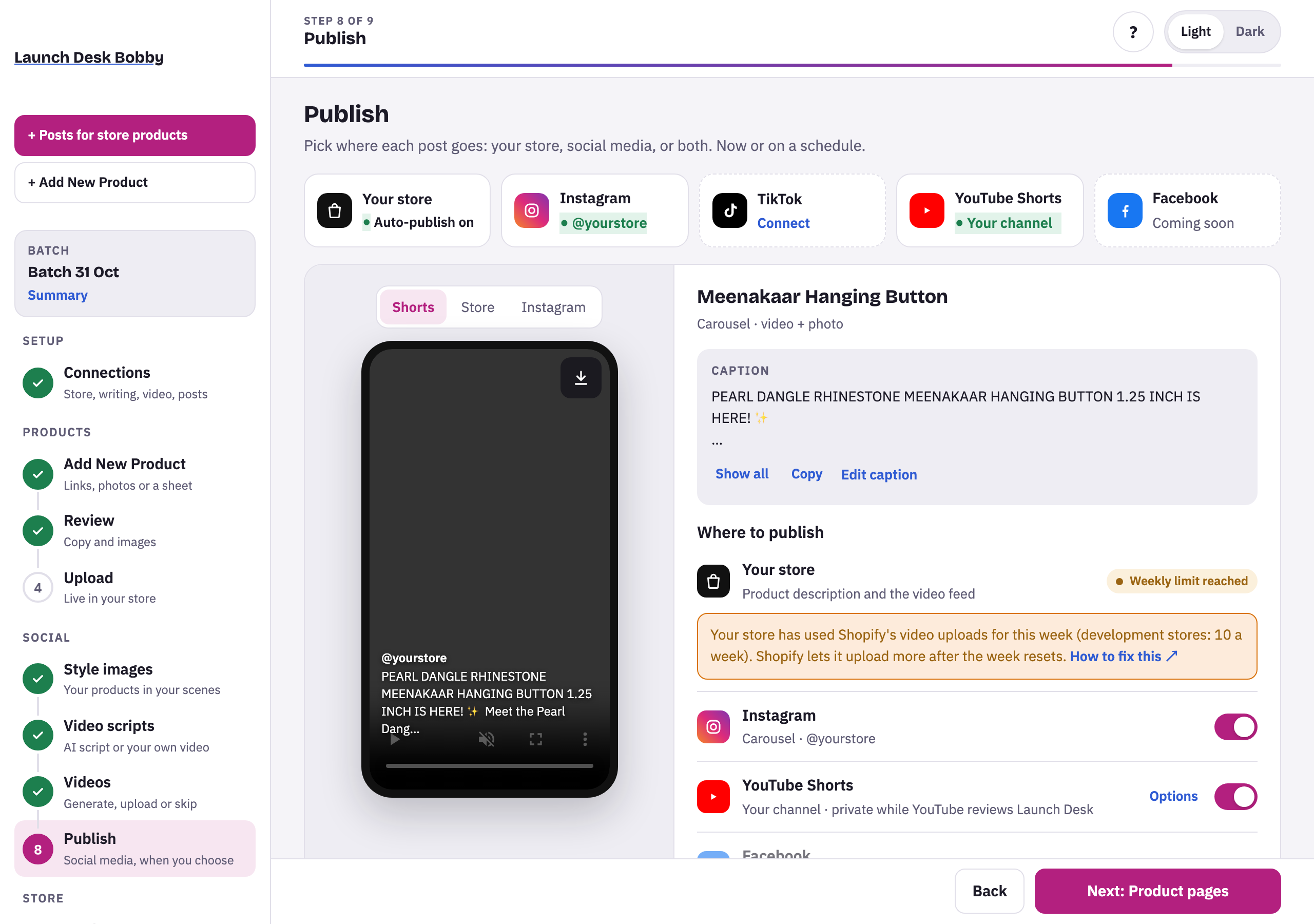
- On Publish, the strip at the top shows your places: Your store, Instagram, TikTok, YouTube Shorts (Facebook is coming soon). Connect opens Connections for one that isn’t connected yet.
- Each post has a phone preview: switch between Instagram, Store, TikTok and Shorts to see it there.
- Check the Caption (Edit caption takes you back to Style images).
- Under Where to publish, switch each place on or off. TikTok and YouTube have Options (see below).
- Choose Now or Schedule (pre-filled with your suggested posting time), then press Publish to N places and confirm.
Each place then shows its state: Published with View, 🗓 with the scheduled time (✕ removes the schedule), Publishing…, or Problem with what went wrong.
TikTok options
- Caption on TikTok (up to 2,200 characters).
- Who can see this post: Everyone, Friends, Followers or Only me (you must choose).
- Allow people to Comment, Duet or Stitch.
- Disclose video content: tick Your brand if it promotes your own business, or Branded content for another brand (labeled “Paid partnership”).
AI videos are labeled as AI-generated on TikTok. While TikTok reviews Launch Desk, TikTok posts are private.
YouTube Shorts options
A Title (up to 100 characters), a Description (your caption plus a link to the product) and Who can see this Short: Public, Unlisted or Private. AI videos are marked as altered or synthetic content. While YouTube reviews Launch Desk, Shorts are private.
All products in one post
With two or more products, + Add an all-products carousel makes one more post with every product’s photo (up to 10) and the All products caption.
When you’re done, Next: Product pages (or Finish).
Tips and limits
If something goes wrong
Posting to the social account is turned off in Settings › Social posts.
Turn Post to the social account back on in Settings › Social posts. Turning it off also takes the time off every scheduled post.
Choose a time at least a few minutes from now.
Pick a later time.