Make style images
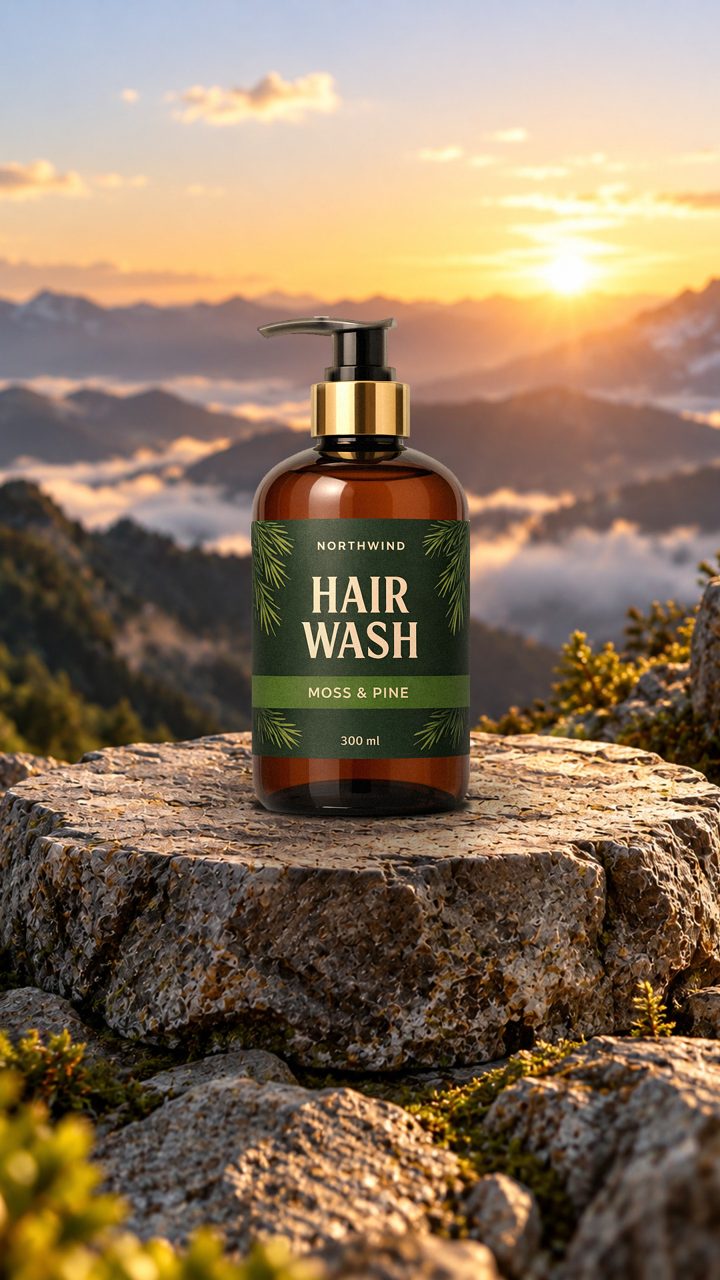
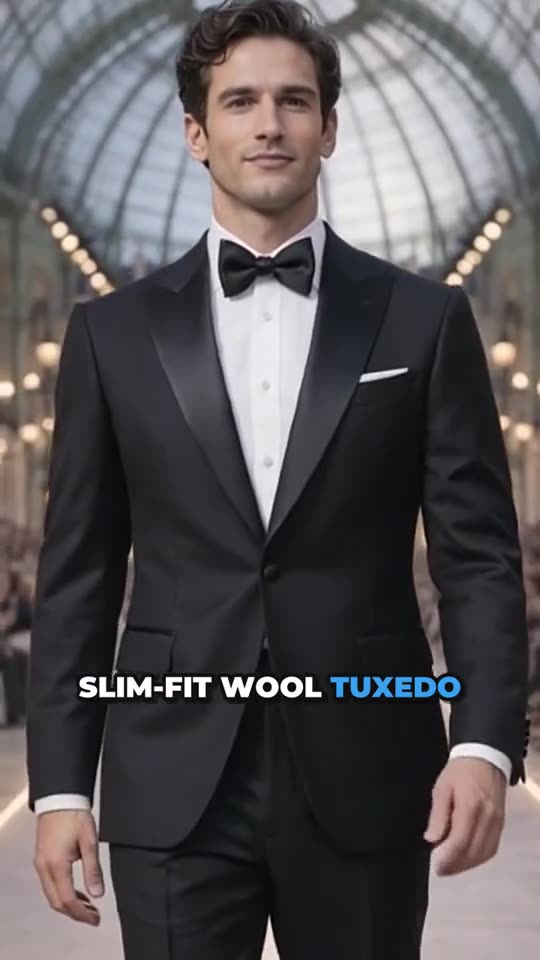
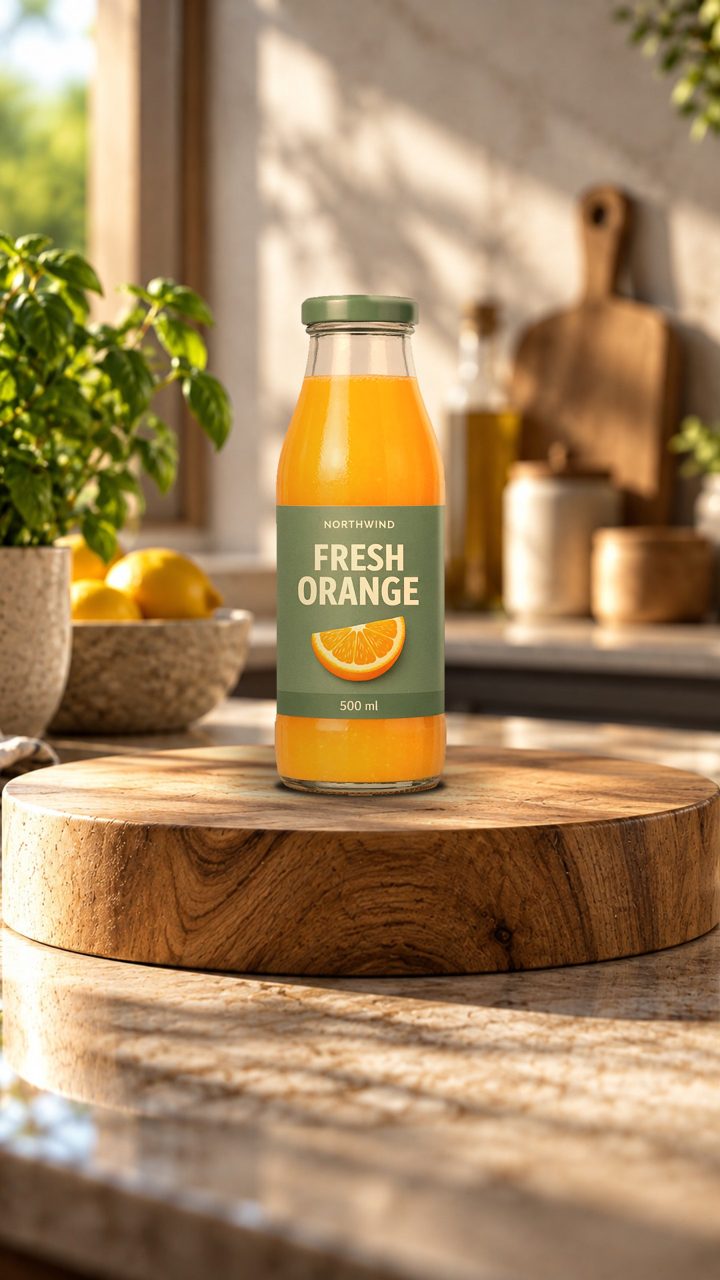
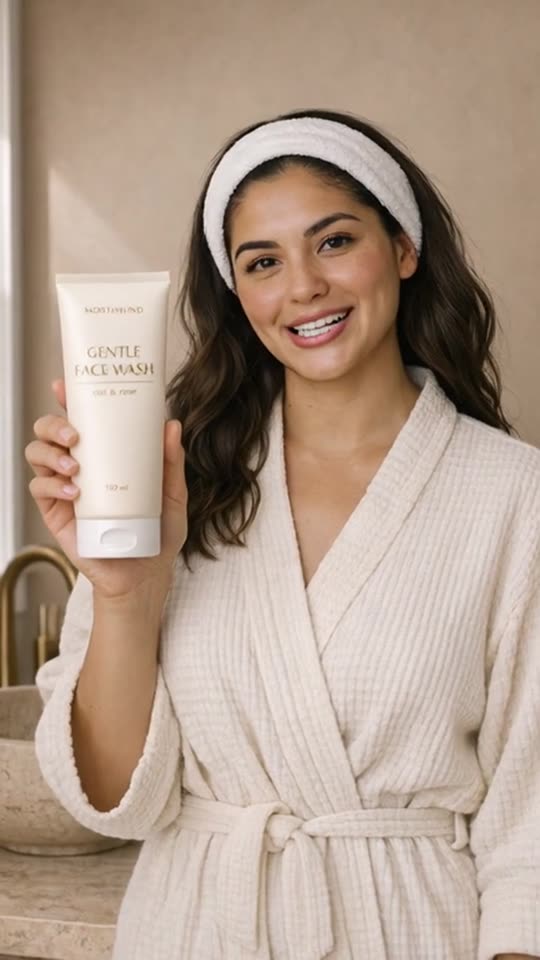
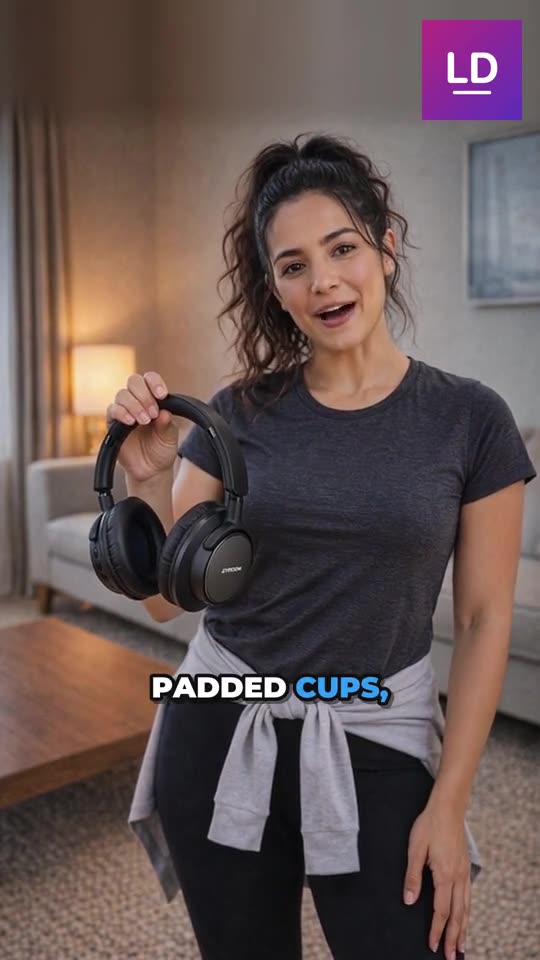
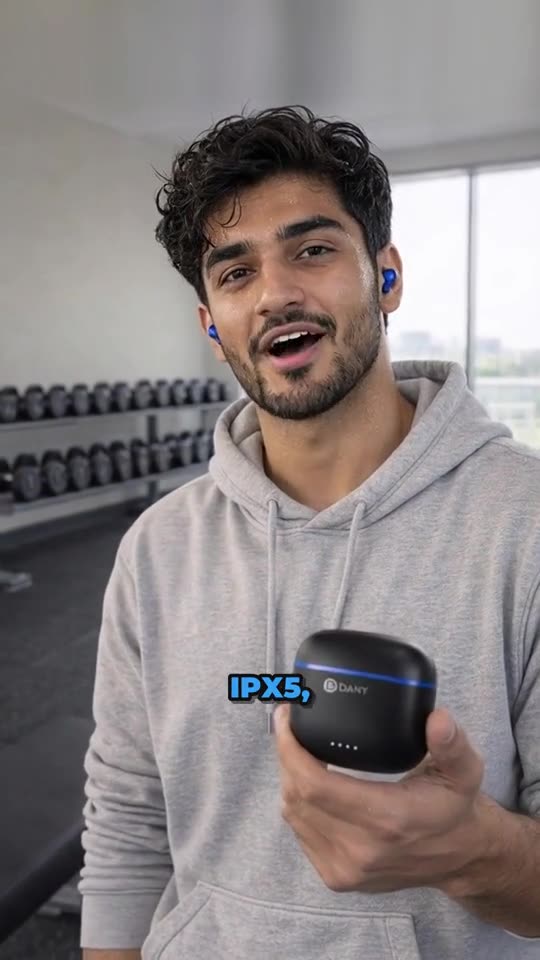
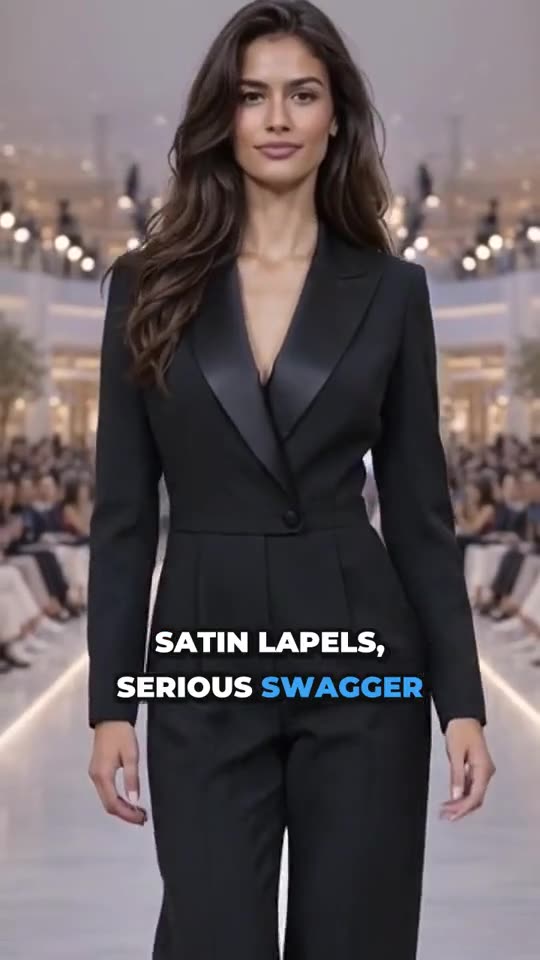
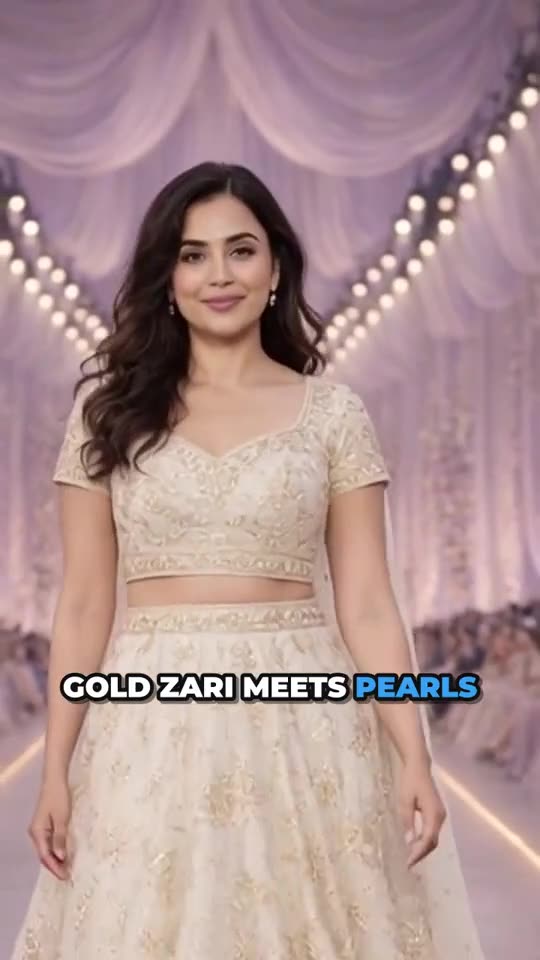
Choose a look for your products' social photos (your scenes for free, or an AI background, your avatar or a model) and make them in one go.
On this page
Before you start
- Anyone on your store's team can do this.
- Plans: All plans (avatars from Basic, models on Pro). Credits: Your own scenes are free. New AI backgrounds use your plan's AI backgrounds; avatar and model images use its AI images.
Steps
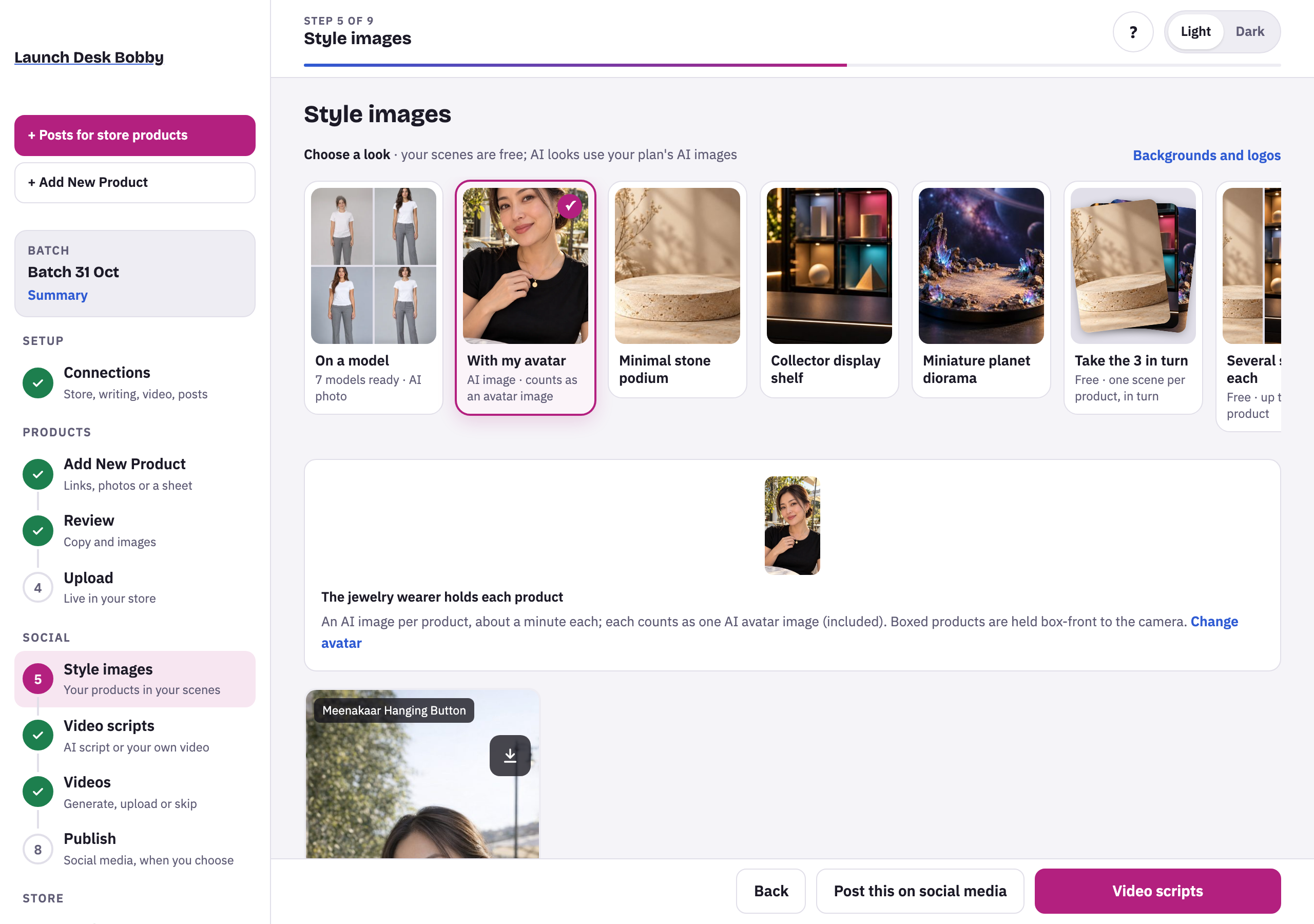
- On Style images, under Choose a look, pick one:
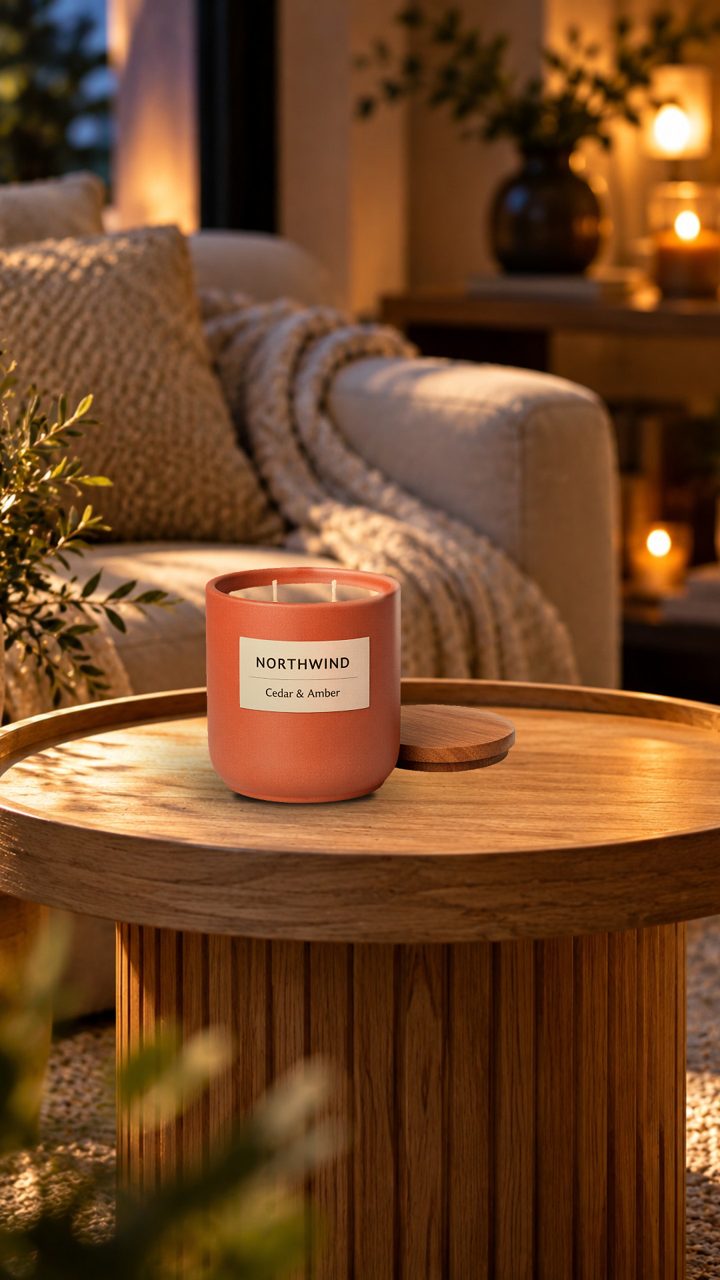
- One of your scenes (free): your real product photo is placed on it, so it always looks exactly like the product.
- Take the 3 in turn or Several scenes each (free): one scene per product in turn, or several per product (you pick which is used for the post).
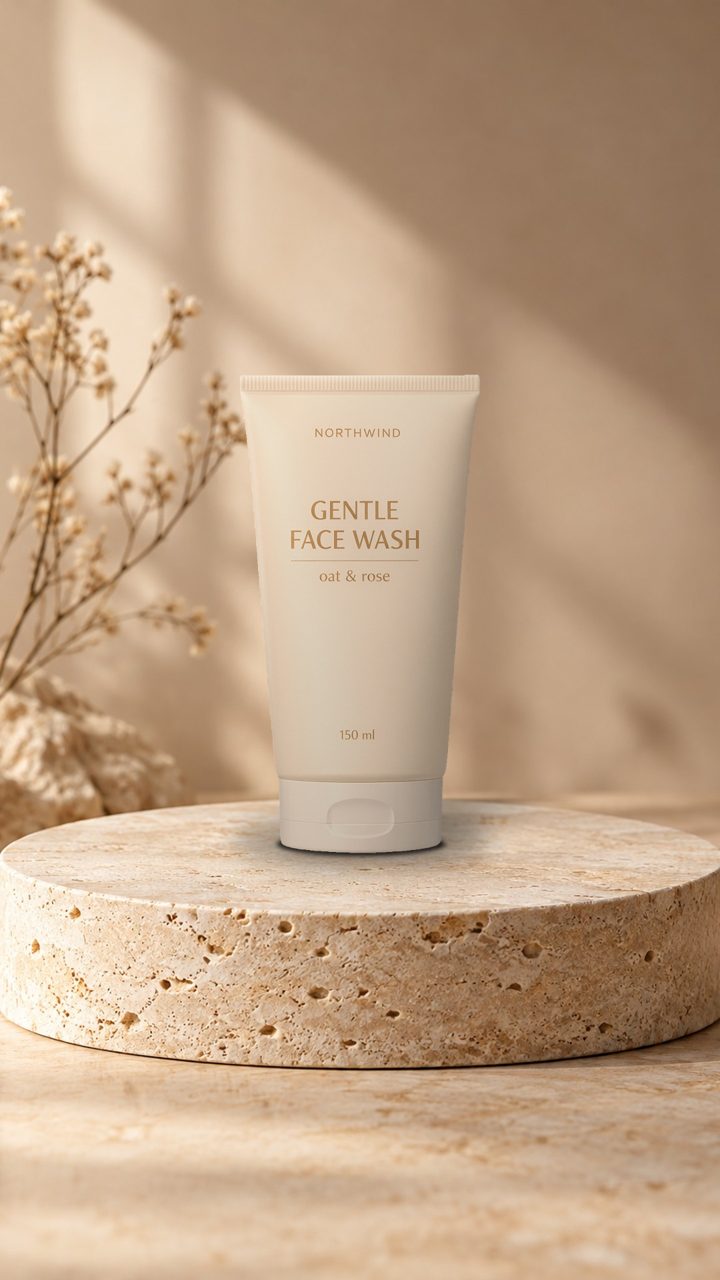
- New AI background: an AI background made for each product.
- With my avatar: your AI avatar holds each product. Boxed products are held box-front to the camera.
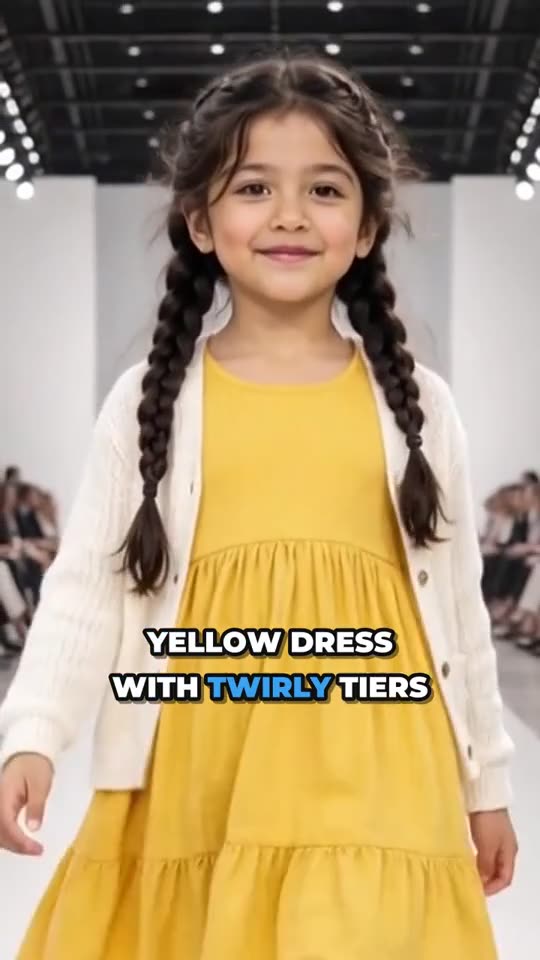
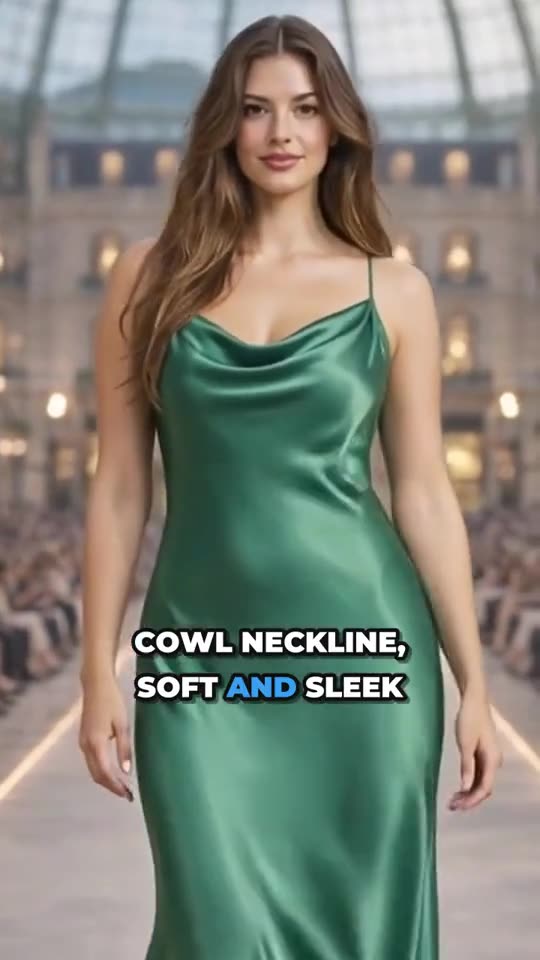
- On a model (Pro): a model wears the product.
- Press Make … style images. Each takes from a few seconds (scenes) to about a minute (AI images).
- Check each image. ↻ Redo makes one again, with your instructions if you like. Each tile can be downloaded.
- Check the Post captions below the images, then go on to Video scripts (or Post this on social media).
What’s labeled AI
Images with an AI avatar, model or background carry a small AI-generated label on your store. Your real photo placed on a ready-made scene isn’t labeled.
Tips and limits
TipCaptions for your posts are written at the same time, in your caption style.
TipPost this on social media skips the video steps: the style images and captions go straight to Publish (Instagram; TikTok and YouTube take videos only).
LimitA declined or failed image isn't counted.
If something goes wrong
Make at least one style image to continue to captions.
Press the Make button first; the next steps use the style images.