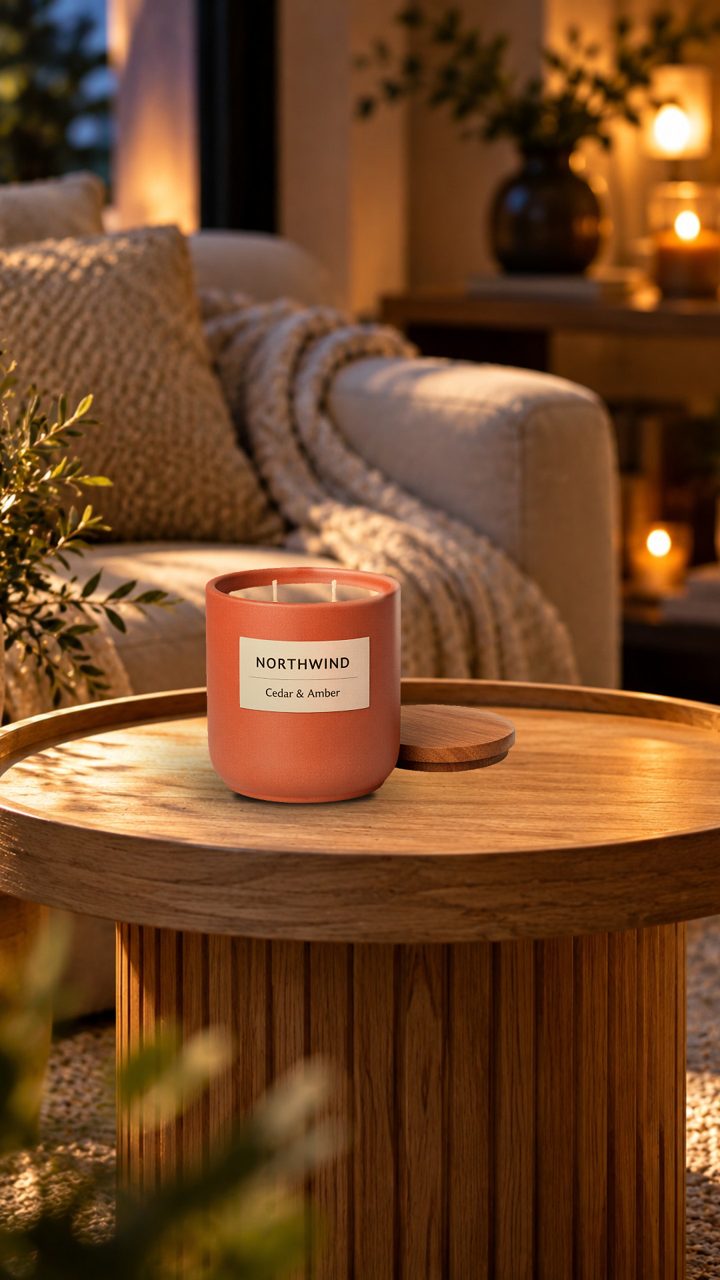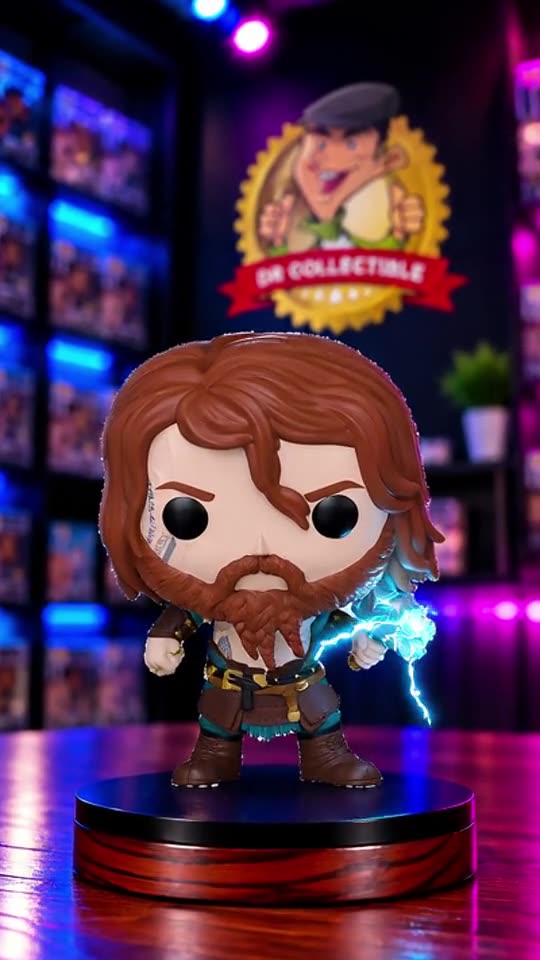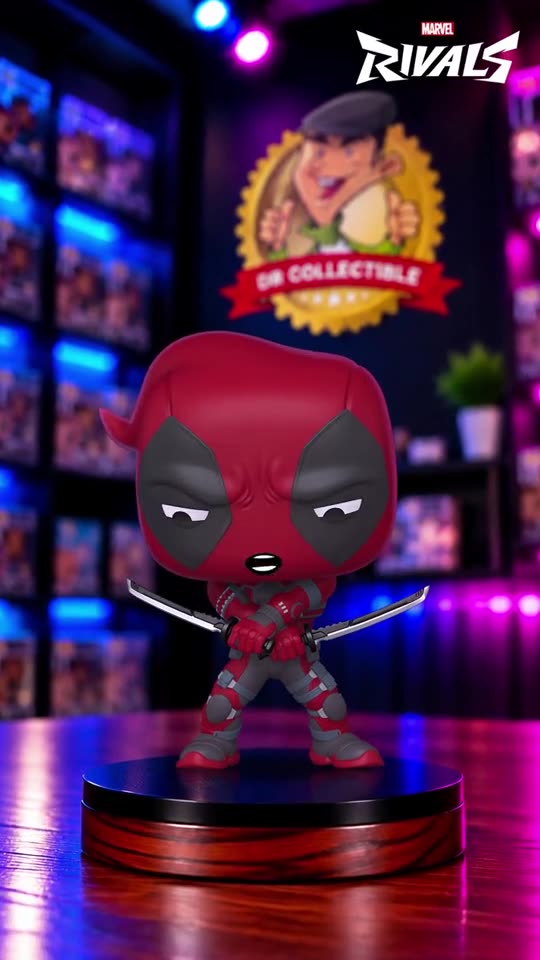
Logos on your style images
Put your store's logo, and the franchise's logo of licensed products, on your style images.
On this page
Before you start
- You need to be the store's owner in Launch Desk (staff can't do this).
- Your logo in Settings › Business profile
- Plans: All plans. Credits: Free.
Steps
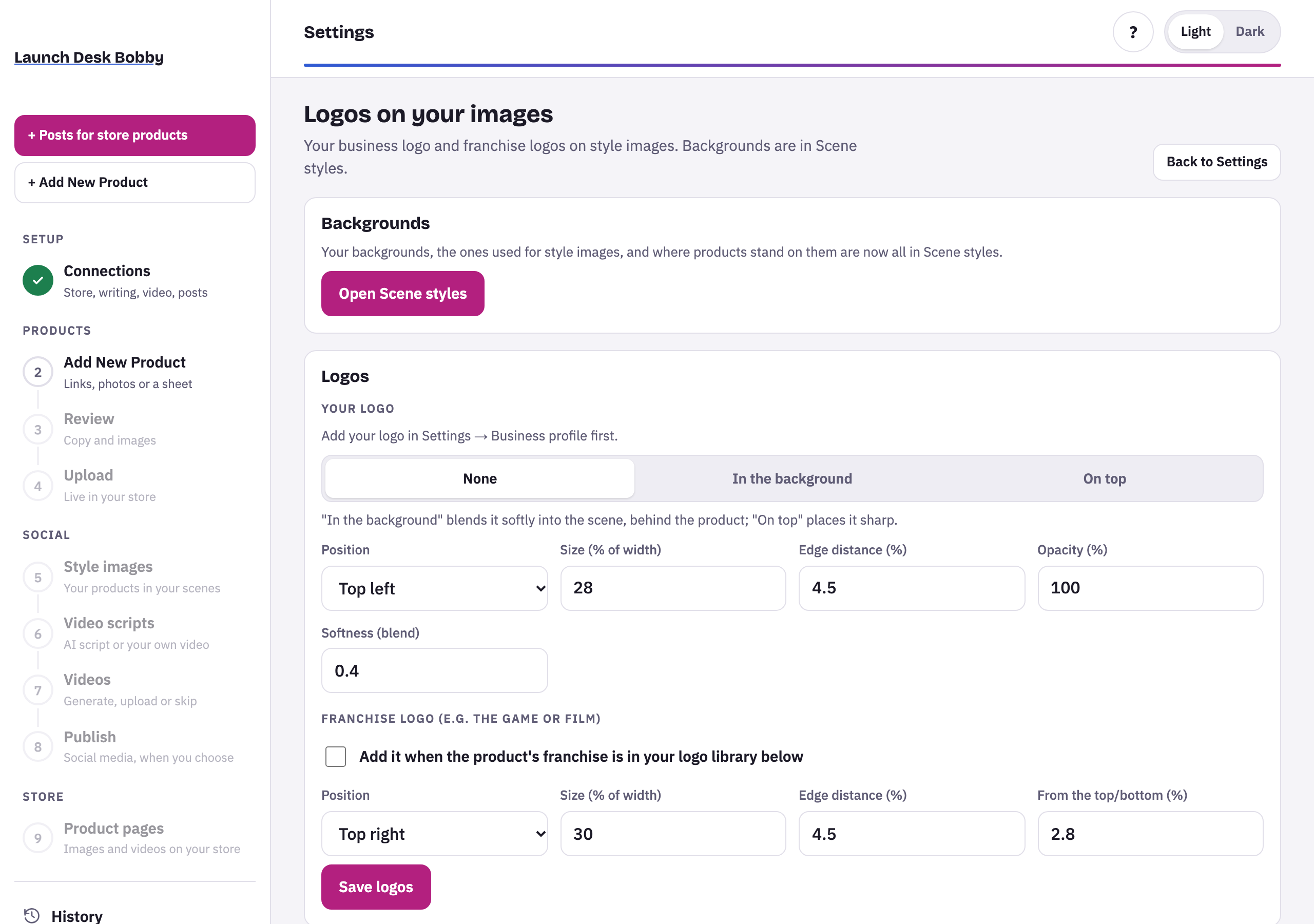
- Open Backgrounds and logos from Style images (or Settings › Logos on your images).
- Under Your logo, choose None, In the background (blended softly into the scene, behind the product) or On top (placed sharp). Set its position, size, edge distance, opacity and softness.
- Under Franchise logo, tick Add it when the product’s franchise is in your logo library below, and set where it goes.
- In the library, add each franchise’s name (and other names it goes by) and its logo file (PNG, JPG or WebP, under 5 MB). Press Save logos.
A product’s franchise logo is added when its licence matches a name in your library. A group image gets one only when every product is from the same franchise.
Tips and limits
LimitOnly franchise logos you upload are used; nothing is looked up or downloaded.
LimitYou confirm you're allowed to use each franchise logo in your marketing.