Video scripts
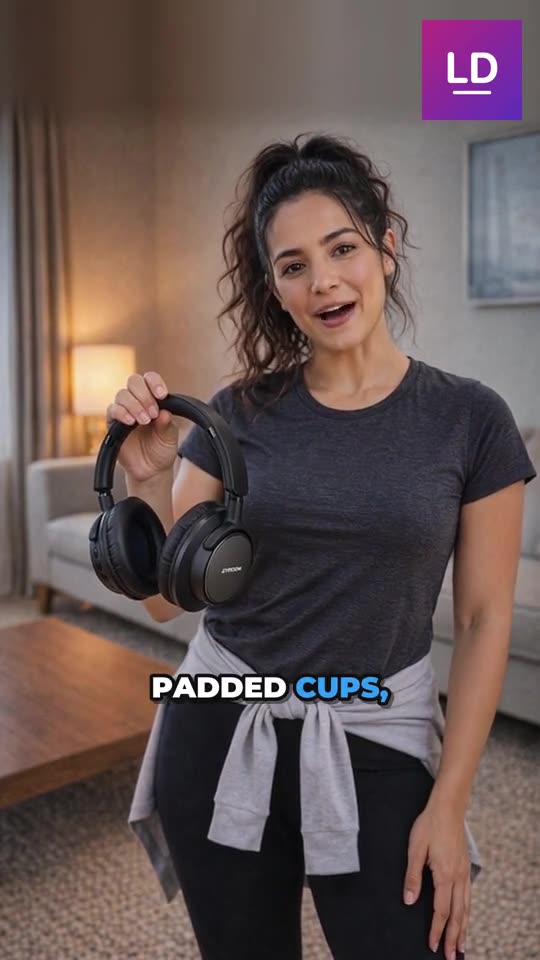
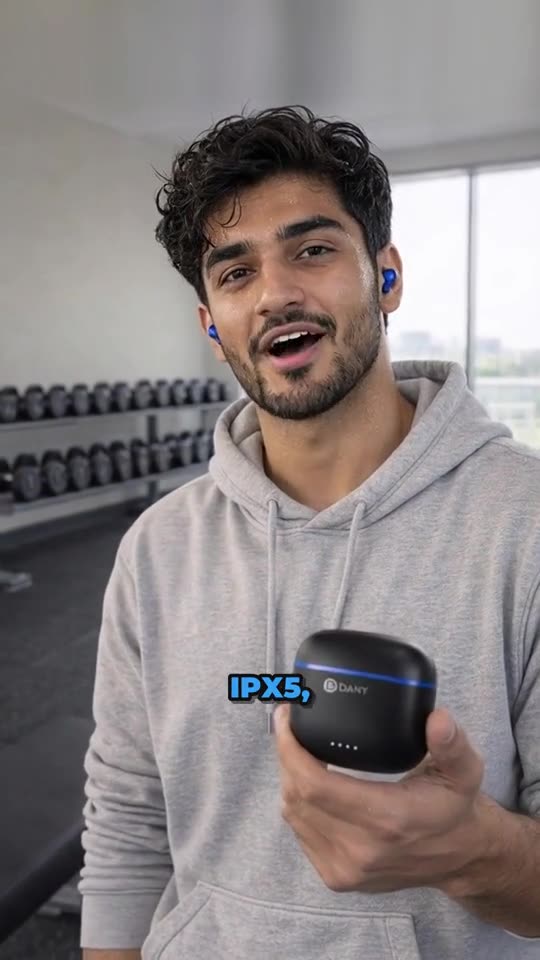
Launch Desk writes a script for each AI video, planned in scenes with what's said. Change the words, write it again, or upload your own video instead.
On this page
Before you start
- Anyone on your store's team can do this.
- Plans: All plans (AI videos on Growth and Pro). Credits: Writing scripts is free. The video itself uses your plan's videos.
Steps
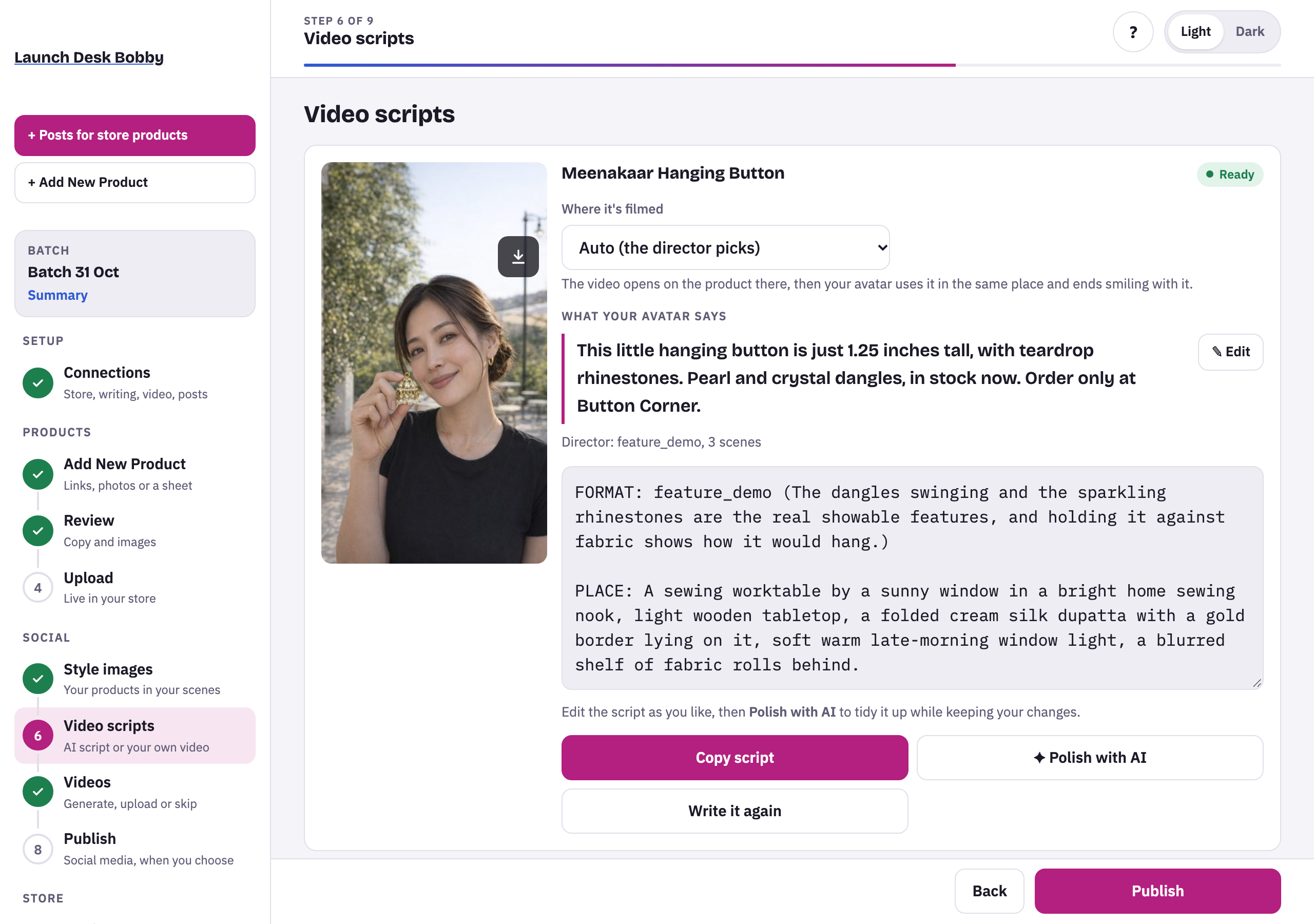
- On Video scripts, press Write video script on each style image you want a video of. Or skip it and upload your own video right there.
- The video director plans the video in a few short scenes (up to 5), from the product’s details: what it is, its real size and what makes it stand out. The call to action comes in the last scene.
- Check the words under What your avatar says (or the quote for a character’s video).
Change it
- ✎ Edit: change what’s said. The words go in exactly as you write them; the scenes and their timing stay. Press Save the words.
- Write it again (or Use a different quote): a new script from scratch.
- Edit the full script in its box, then ✦ Polish with AI to tidy it while keeping your changes.
- Where it’s filmed (avatar videos): Auto, or a place like Kitchen, Café, Gym or Street. Press Write it again after changing it.
- Music (model walks): Auto, Upbeat pop, Runway house, Hip-hop beat, Chill lo-fi, or No music. ▶ plays a sample.
If you change a script after its video was made, that video is marked out of date, and Videos offers Make the new video.
Tips and limits
TipKeep sentences short: they sound most natural when spoken.
TipReal facts from the product's specs, like its size or a well-known part maker, are worked into the words, never made stronger than stated.
LimitWords that fit (normal pace): about 13 for 6 s, 22 for 10 s, 32 for 15 s. A slower pace fits fewer.
If something goes wrong
That's … words: a …-second video holds at most …. Shorten it a little.
Take a few words out, or split long sentences.
Those words don't fit the scenes' timing. Try shorter sentences.
Shorten the sentences, or press Write it again for a new plan.