Captions in videos, and avatar voices
Bold captions burned into your videos, with the spoken word in blue, and the voices your avatars speak with.
On this page
Before you start
- Anyone on your store's team can do this.
- Captions: Settings › Videos. Voices: Settings › Avatars › Voices in avatar videos
- Plans: All plans that make videos. Credits: Editing captions is free and uses no AI.
Steps
Captions
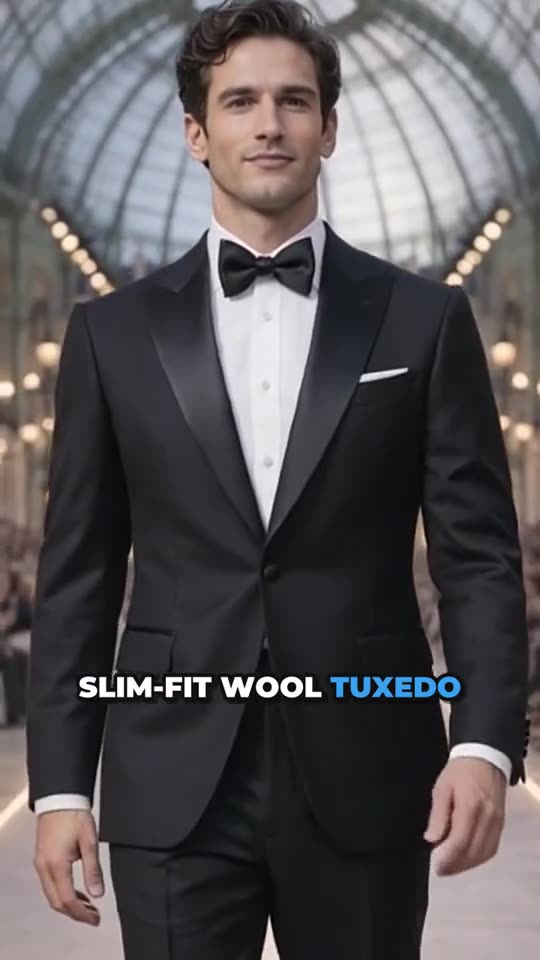
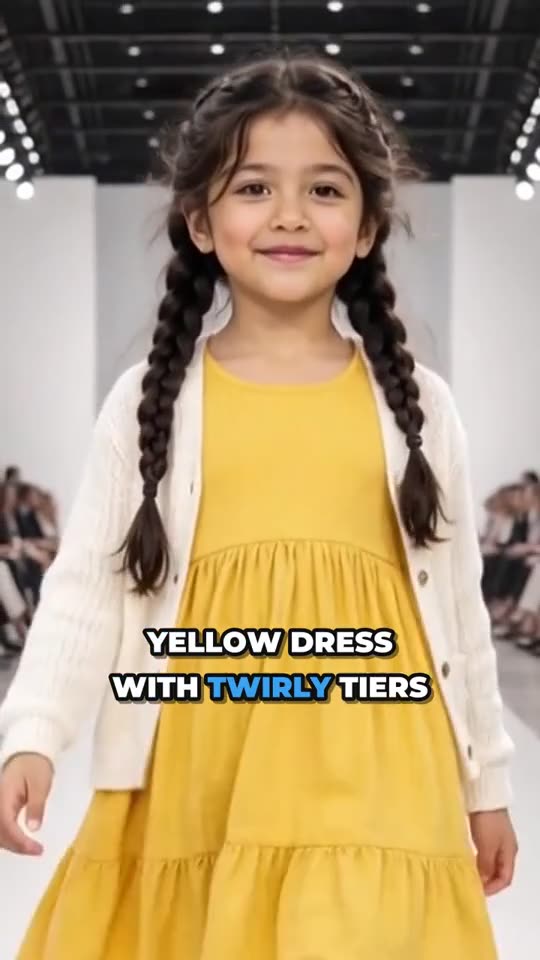
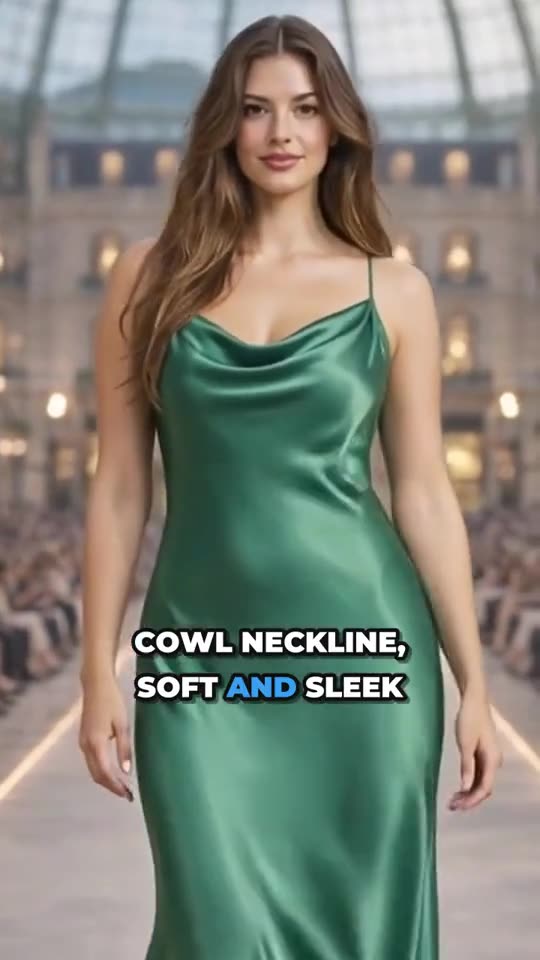
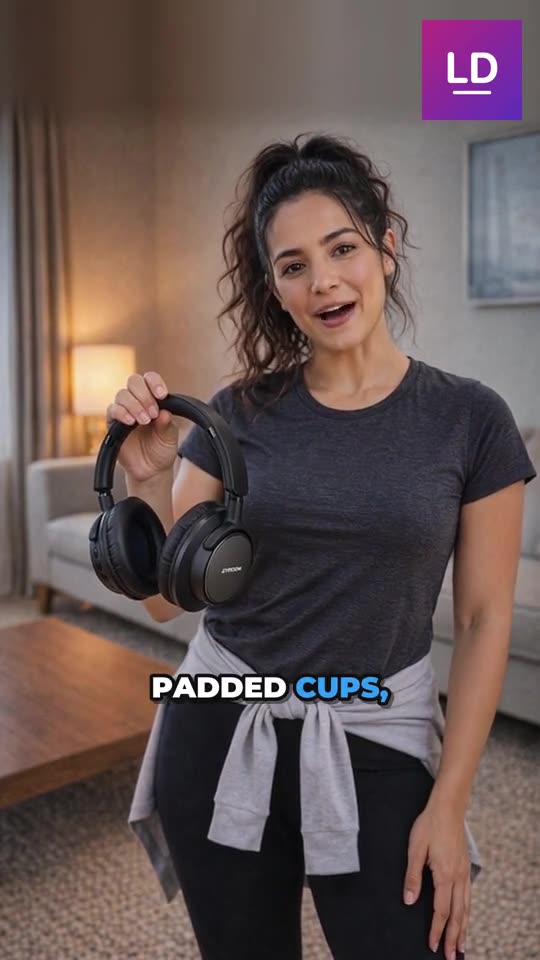
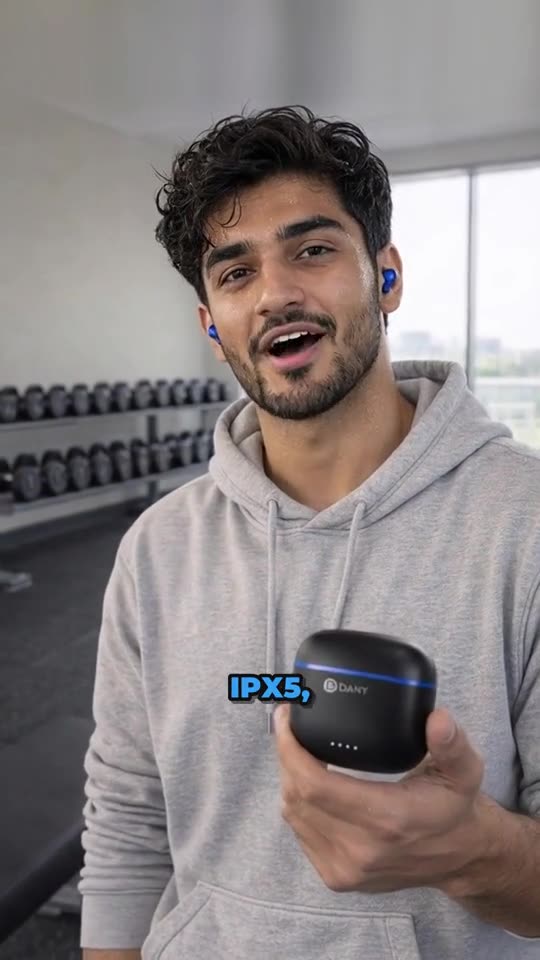
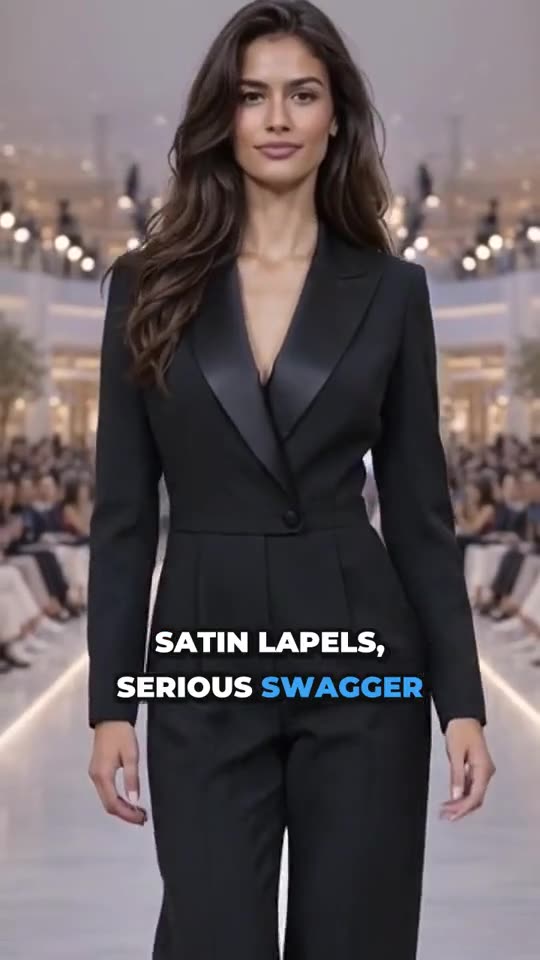
New videos get bold white captions, a few words at a time, with the word being said in blue. They’re taken from the voice and spelled as in the script. Model walks get 3-4 short lines about the product instead.
On Videos, under each video:
- Captions on this video switches them on or off.
- Edit the Captions box (one caption per line), and pick a Font (12, like Montserrat Black, Anton or Bangers) and Size (70% to 160%). The preview shows the look.
- Press Save captions. The video in the post is updated.
The defaults for new videos are in Settings › Videos (Captions in videos, Caption font, Caption size).
Avatar voices
Every avatar video gets a real-sounding voice. In Settings › Avatars, under Voices in avatar videos:
- Auto (recommended): a voice that suits each avatar (a woman’s or a man’s, a matching accent and age).
- I’ll choose: your default female and male voices (▶ plays a sample). An avatar can also have its own voice, on its card.
- Delivery: Natural, Expressive (upbeat Reels) or Calm (beauty, wellness, premium).
- Natural room sound: a light room echo instead of a studio-clean voice.
Avatar speaking pace (Slow, Normal, Fast) is in Settings › Videos; slower means fewer words in the script.
Tips and limits
TipFix a word or its spelling in the captions box: each word keeps the time it's said.
LimitModel walks: up to 4 caption lines, 32 characters each.
LimitVideos with music only have no captions.
If something goes wrong
Choose a male and a female voice, or use Auto.
In I'll choose mode, pick both default voices.