Business profile
Your business name, logo, brand colors and money formats, loaded from your store.
On this page
Before you start
- You need to be the store's owner in Launch Desk (staff can't do this).
- Plans: All plans. Credits: None.
Steps
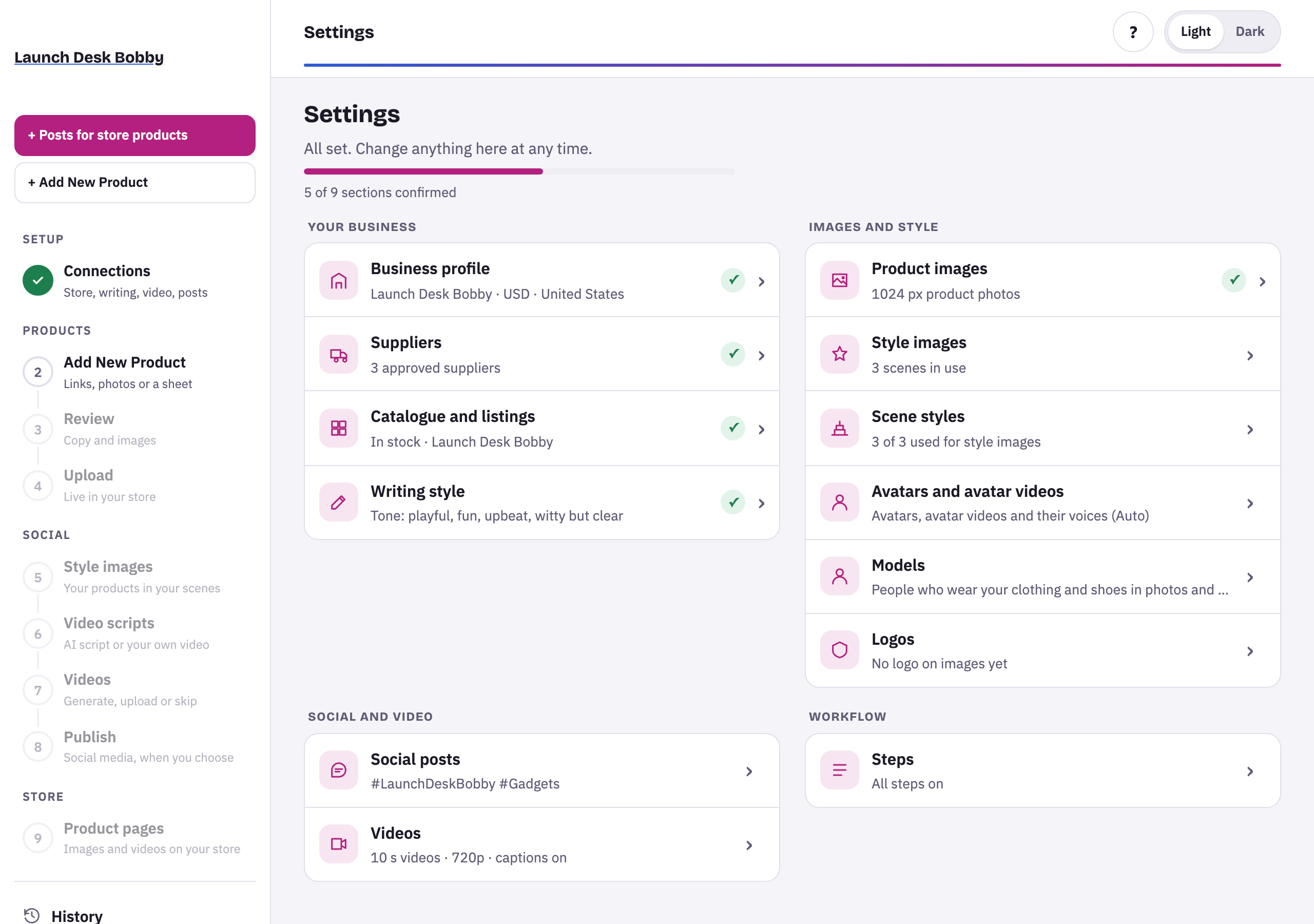
Business profile is one of two sections to confirm before your first batch (with Catalogue and listings).
- Open Settings › Business profile and press ↻ Load from store. Your name, logo, website, country, currency and time zone are filled in from your Shopify store. Nothing is saved yet.
- Check each field: Business name, Logo (square works best; or Upload one), Brand colour for the light and dark themes, Website, Country, Currency code (like USD) and symbol (like $), Date and number format (like en-US) and Time zone (like America/New_York).
- Press Confirm and save.
How Settings work
- Each section is saved with its own button: Confirm and save the first time, Save changes after that.
- Changes apply to new batches; a batch already started keeps the settings it began with. (Steps is the exception: it applies straight away.)
- Settings are for owners. Staff can ask an owner to change something.