You can make good product videos without a camera, a studio or editing skills. Start from a clean product photo, place the product in a scene that fits it, add a slow camera move, music and bold captions, and export a vertical 9:16 video for Instagram Reels, TikTok and YouTube Shorts. AI tools now do most of these steps for you; your job is to choose well and check the result.
This guide walks through the whole process for a small Shopify store: what to prepare, how to plan a short video, how AI turns a photo into motion, how to caption it, which sizes to export, and how to post consistently without it taking over your week.
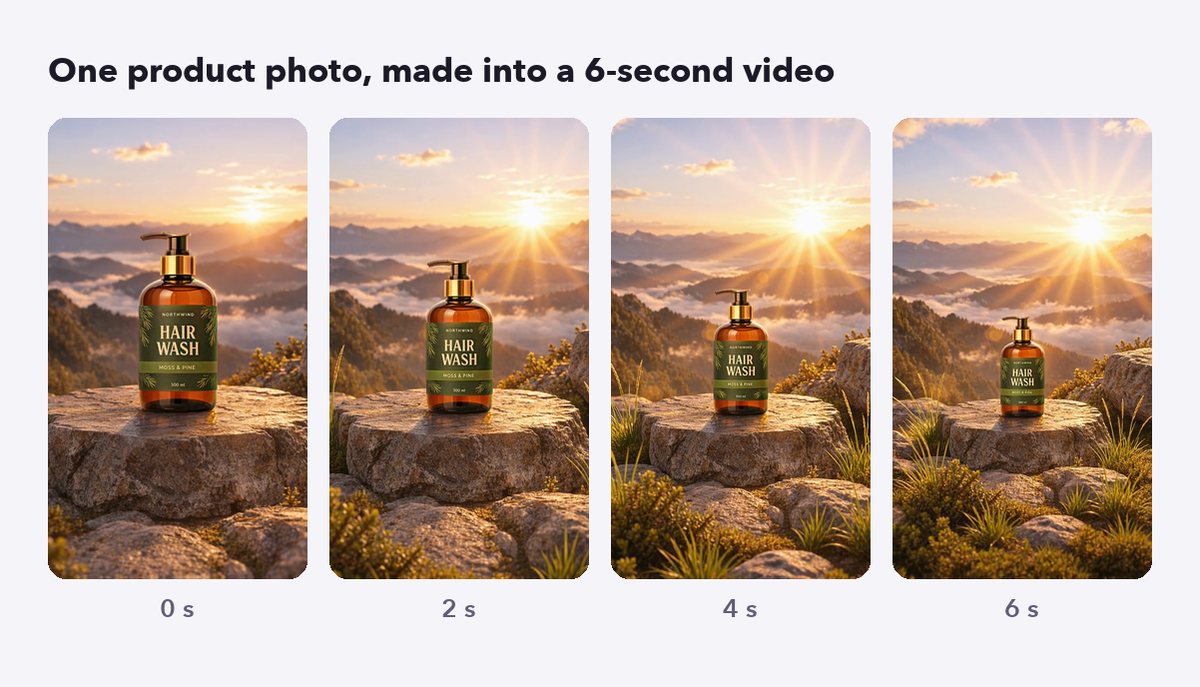
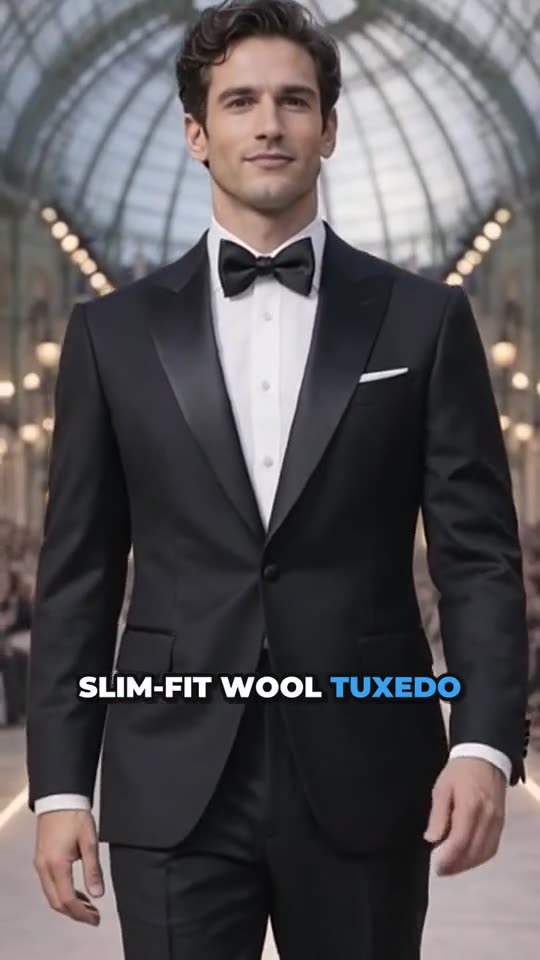
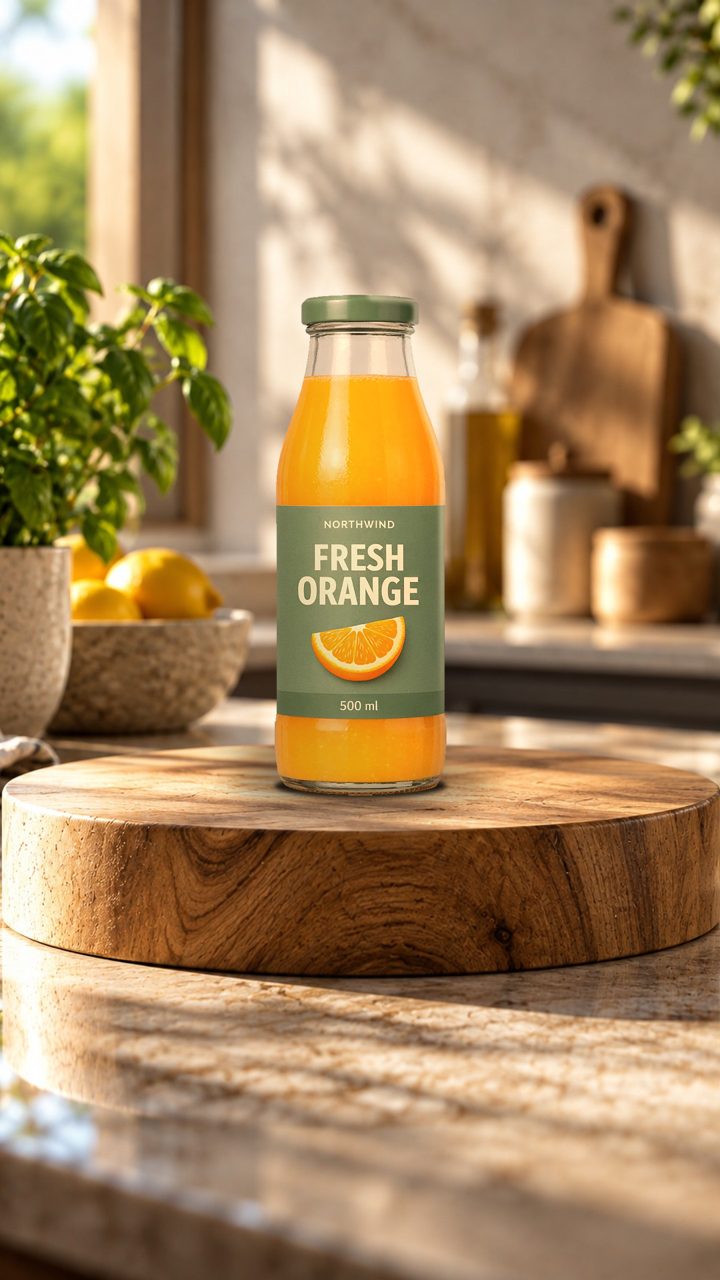
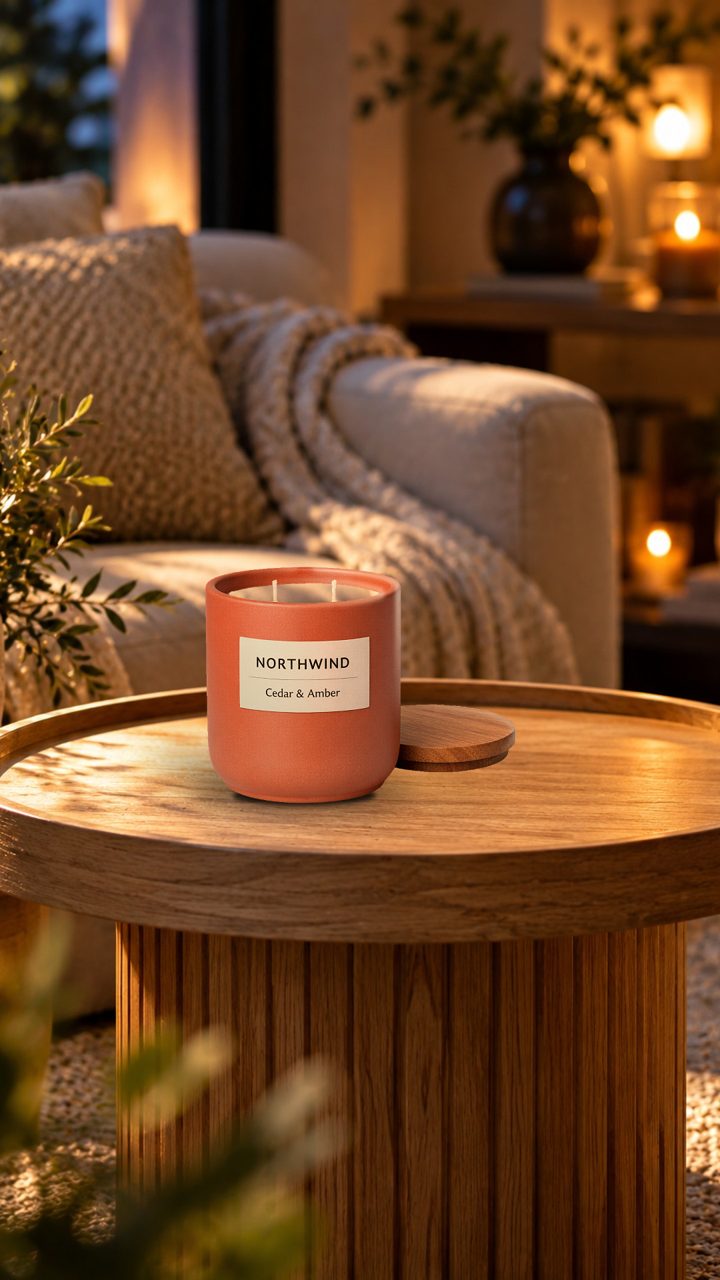
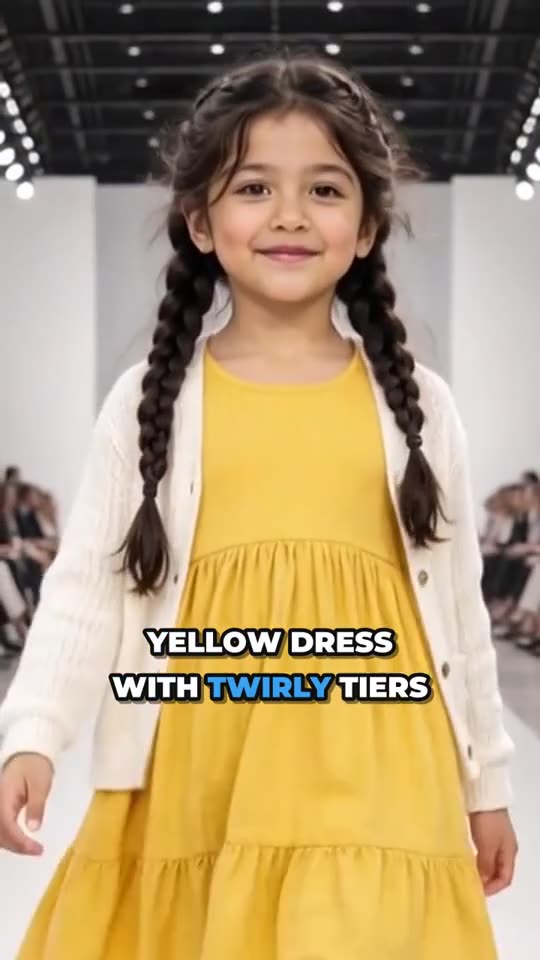
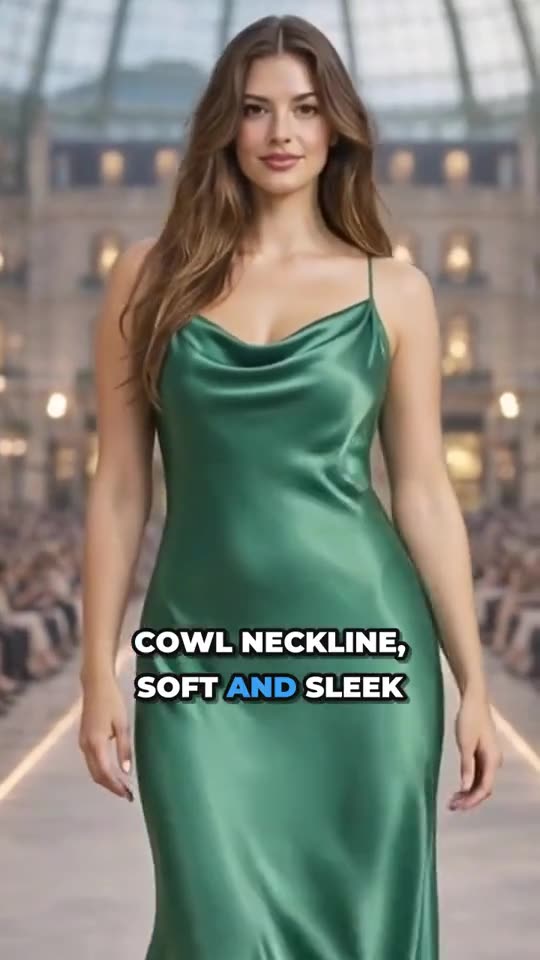
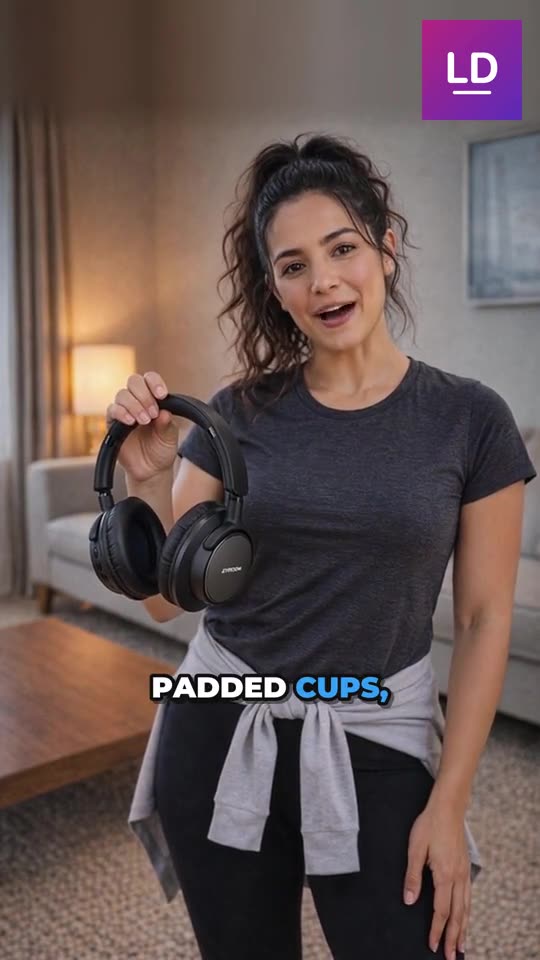
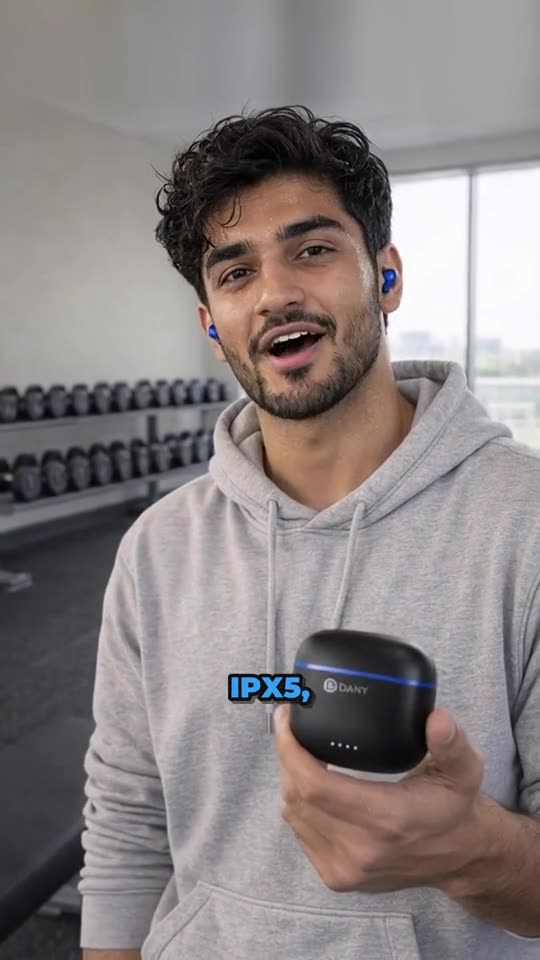
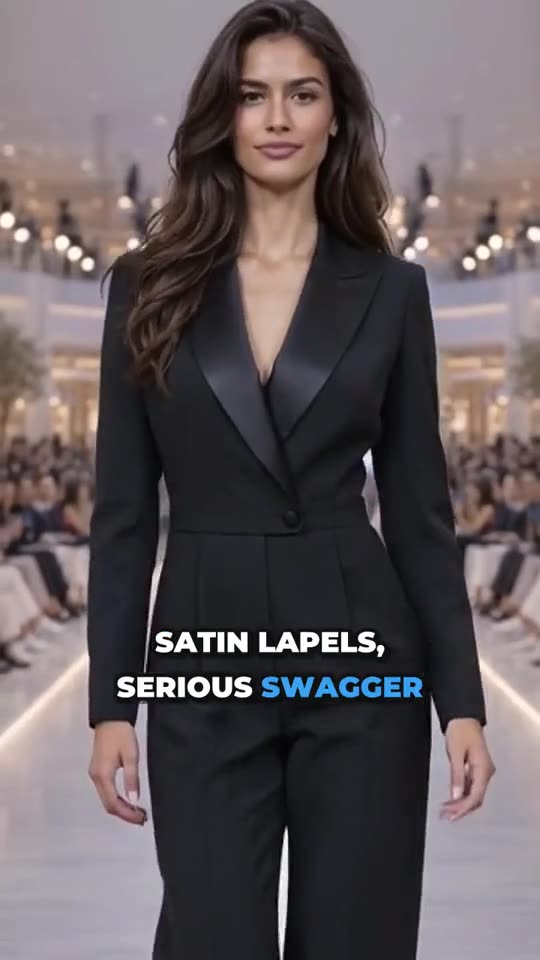
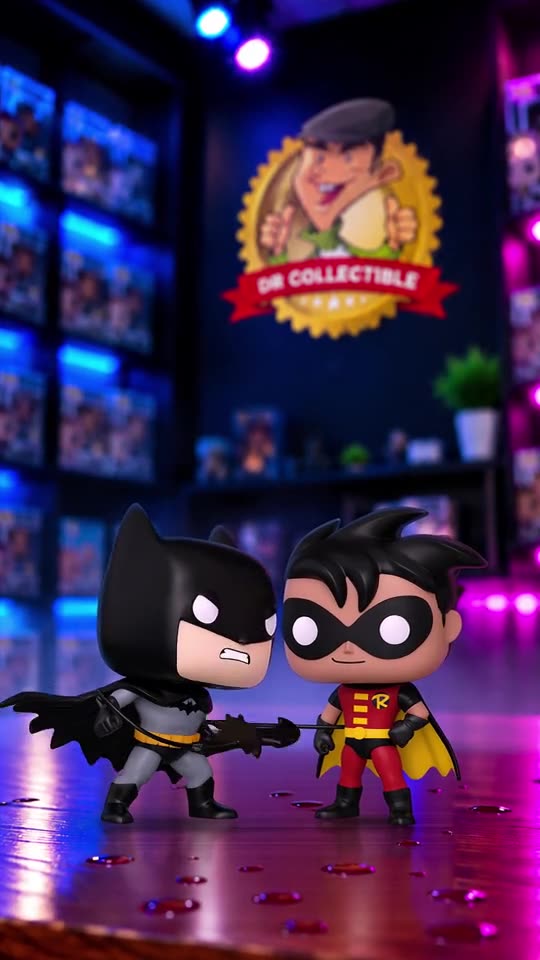
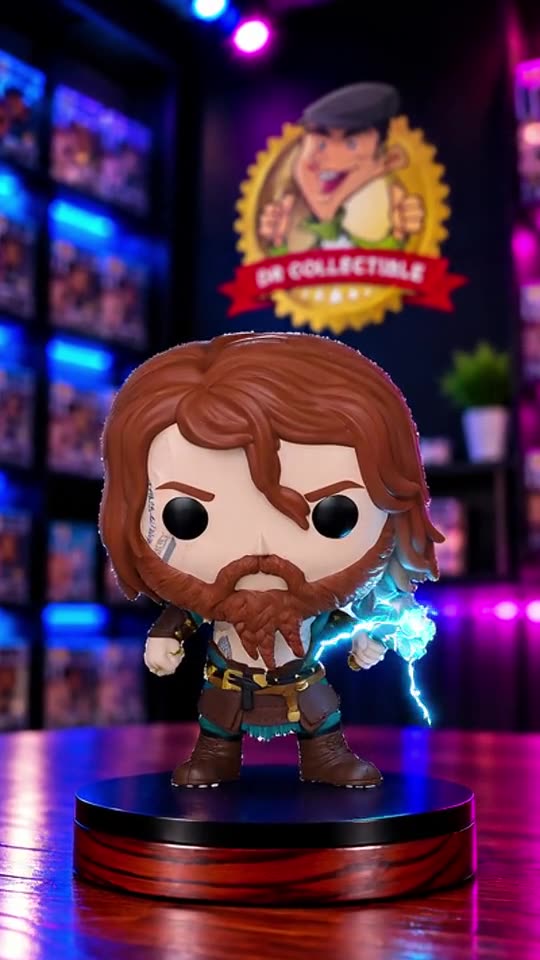
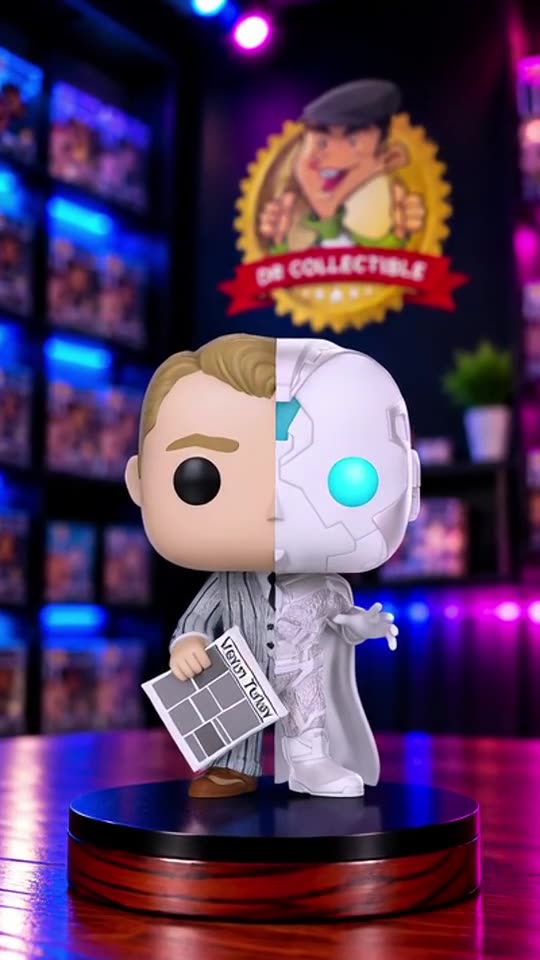
Four frames from one 6-second video made from a single product photo. The product never changes; the camera does the moving.
Why short product videos matter for small stores
Short vertical video is where many shoppers now discover products. Instagram Reels, TikTok and YouTube Shorts are all built around it, and each of them shows short videos to people who don’t follow you yet. A still photo competes with everything else in the feed; a short video with movement and a clear caption gets a second look.
Video also answers questions a photo can’t. How big is it? What does the texture look like when light moves across it? How does the dress move when someone walks? For products where size, finish or fit matter, a few seconds of motion can do the work of a paragraph of description.
The real problem for most stores isn’t knowing that video helps. It’s making one for every product, every week, without a camera crew or an editor. That’s the problem this guide is about.
What you need before you start
You need less than you think, but each item matters.
- One sharp photo of the product. On a plain background, well lit, with the whole product in frame and nothing cropped. This is the single most important input. A blurry or dark photo gives a blurry, dark video, however good the tool.
- Two or three facts about the product. What it is, who it’s for, and the one thing that makes it different. “Sulfate-free hair wash with moss and pine oils” is enough to build a video around.
- A look for your brand. Decide the mood once: bright and fresh, warm and cozy, minimal and premium, outdoor and natural. Using the same look across products makes your feed recognizable.
- Somewhere to post. An Instagram professional account (Business or Creator), and TikTok or YouTube if you use them.
If your supplier’s photos are your only photos, that’s fine. Use the cleanest one, and make sure you’re allowed to use it.
Step 1: Put the product in a scene
A product on a white background is right for your listing’s first image, but social feeds reward a setting. A bathroom shelf for skincare. A mountain rock at sunrise for outdoor gear. A cozy side table for candles. A kitchen counter in morning light for juice.
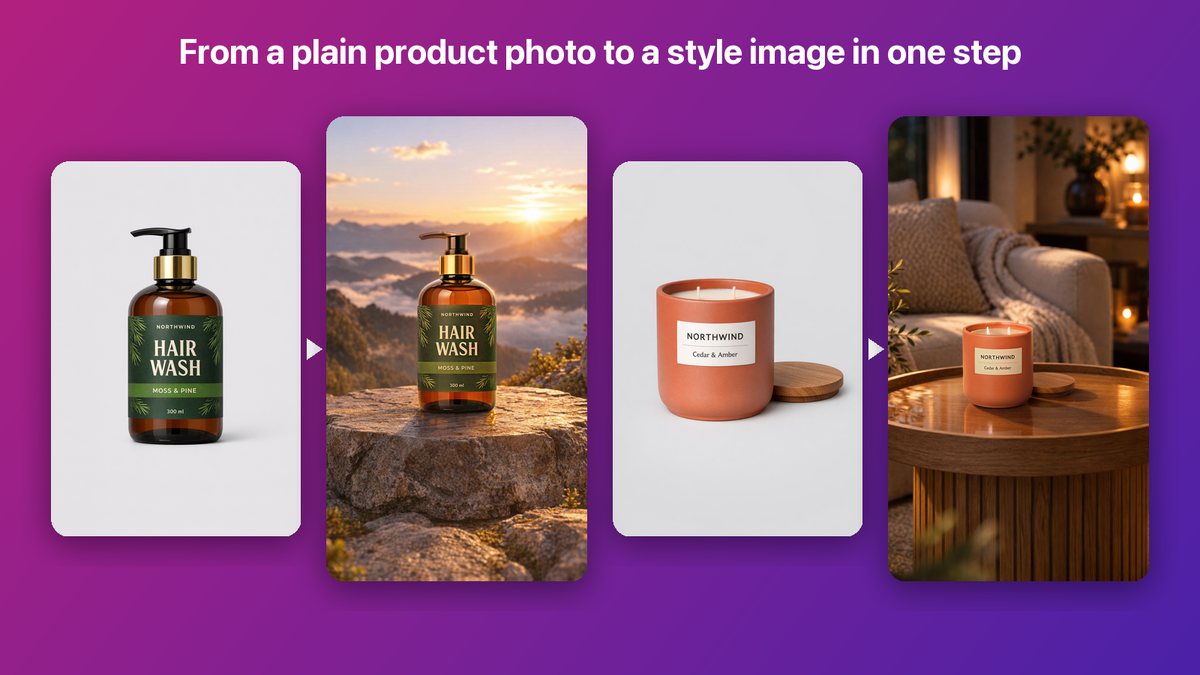
From a plain product photo to a studio image in one step: the product photo is placed in the scene, lit and grounded to match.
Choose a scene that matches where your customer would use the product, or the feeling you want them to have. Keep the scene simple; the product should be the brightest, sharpest thing in the frame.
The most important rule: keep the product exactly as it is. Some AI tools generate the whole image, product included, which can change a label, a color or a shape. That’s a problem for any product, and a serious one for beauty, food or anything with regulated label text. Prefer tools that place your real photo into the scene. That’s how studio images in Launch Desk work: your photo is placed, lit and grounded, and nothing about the product is redrawn.
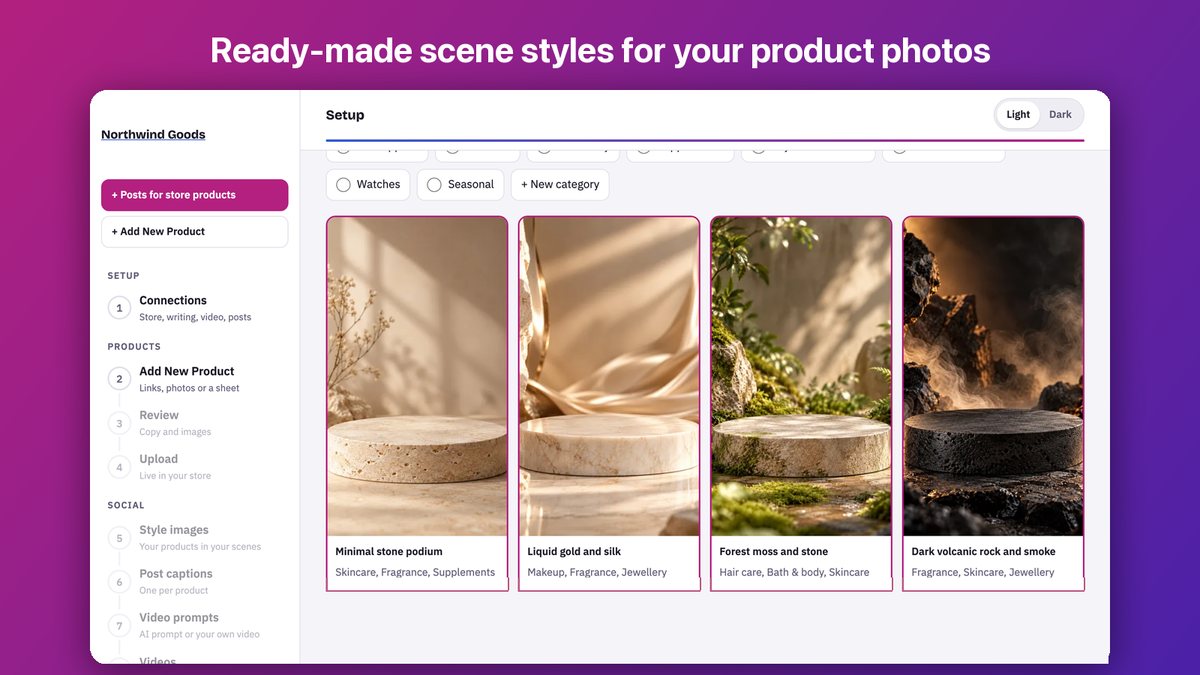
A scene library lets you pick a look once and reuse it for every product, which keeps your feed consistent.
Step 2: Write a short video script
Even a 10-second video needs a plan. Without one, AI tools tend to add random motion that looks impressive and says nothing. Use this simple structure:
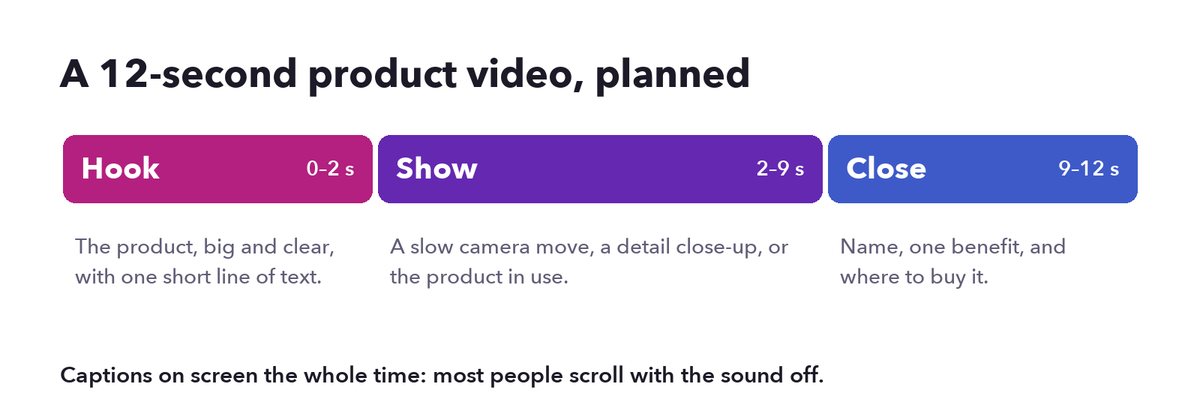
Hook, show, close: a structure that works for almost any single-product video.
- Hook (0–2 seconds). The product, big and clear, with a short line of text: “Your new morning favorite.” “Built for long days.” People decide in the first second whether to keep watching.
- Show (2–9 seconds). A slow camera move around the product, a closer look at a detail (the pump, the label, the texture), or the product in use.
- Close (9–12 seconds). The name, the main benefit, and where to buy it.
Write the script in plain words. If a presenter or a voice will speak it, read it aloud first; anything you stumble over, shorten. One message per video is plenty. If you have three things to say, make three videos.
In Launch Desk, each product’s video script is written for you from the product’s details and your store’s voice, and you can edit every word and camera move before the video is made.
Step 3: Turn the photo into motion
This is where AI does the heavy lifting. A video model takes your studio image and your script and produces a short clip: a slow push-in toward the product, a gentle orbit, light moving across the scene, steam rising from a cup.
A few lessons from making many of these:
- Subtle beats dramatic. Slow, steady camera moves look expensive. Fast spins, zooms and morphing effects make products look fake.
- Let the product stay still. The camera moves; the product doesn’t change shape, grow or melt.
- Check every result. Watch the whole video before posting. If the label warps or the product changes, redo it. Good tools make redoing quick.
- Keep it short. Six to twelve seconds is enough for one product. Longer clips give the model more chances to drift.
In Launch Desk you can choose Lite quality for quick, simple motion, or Advanced for more cinematic camera work. You can also upload your own footage instead, on any plan. See how AI product videos work.
Step 4: Add captions and music
Many people scroll with the sound off, so put the message on screen. Bold, burned-in captions that highlight each word as it’s spoken keep viewers watching and help people who are deaf or hard of hearing.
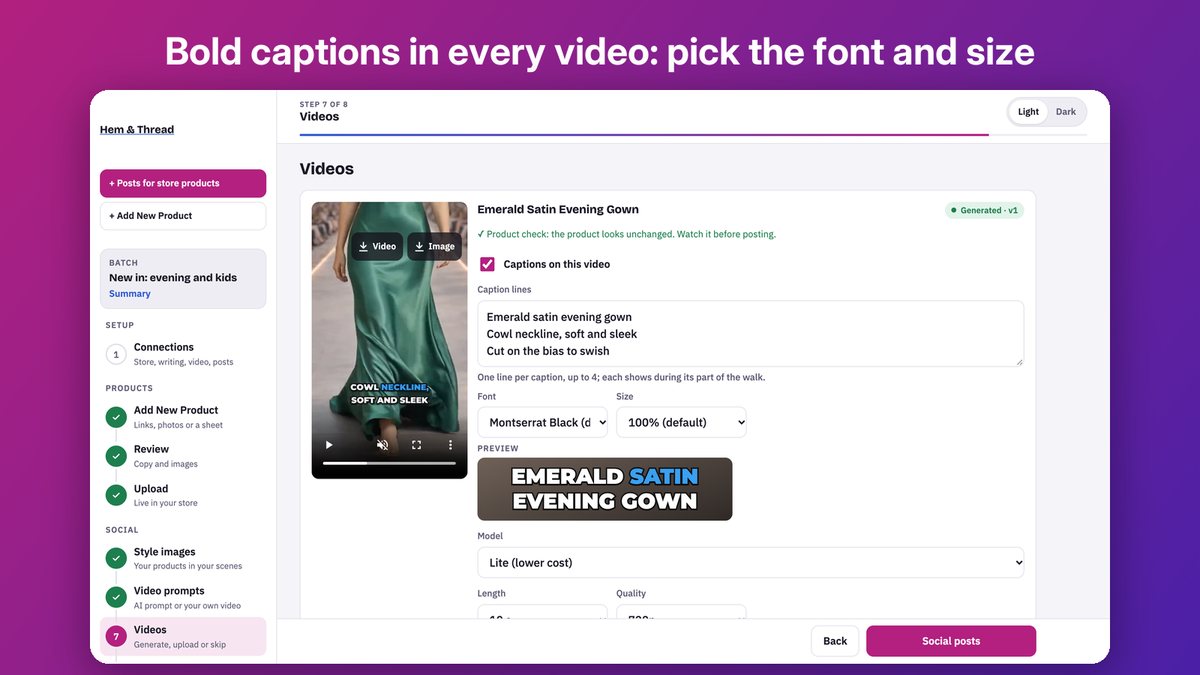
Editing caption lines, font and size, with a live preview of exactly what will be posted.
Caption tips that make a real difference:
- Short lines. Three to five words per line. Nobody reads a paragraph in a Reel.
- Highlight the key word. The product name, the benefit, the number.
- Mind the safe zone. Keep text out of the top 15% and bottom 20% of the frame, where the app’s buttons and captions sit.
- Burn them in. Captions drawn into the video show the same way on every platform, unlike separate subtitle files.
Add a music bed that suits the mood, and keep it quiet under any voice. If you post on Instagram or TikTok, their built-in music libraries are an option at posting time; check the licensing for business accounts.
Step 5: Export the right size
Make vertical first. One 9:16 video works on Reels, TikTok, YouTube Shorts and Stories, so you only make it once.
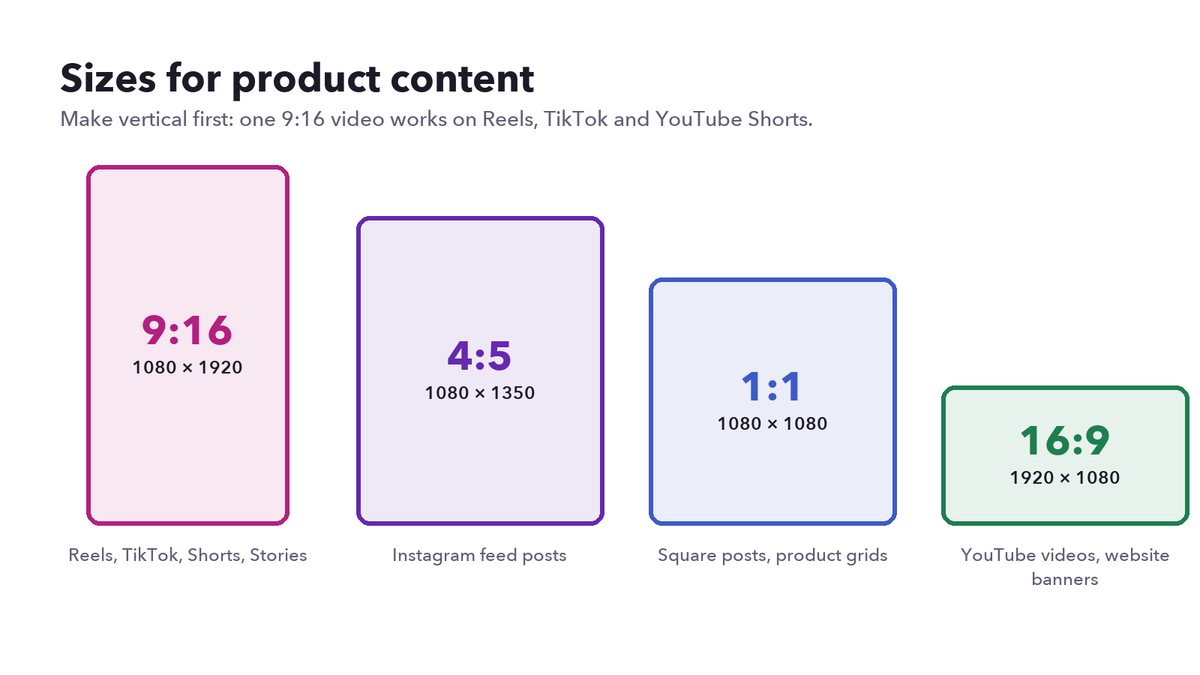
The four shapes product content uses. Start with 9:16.
| Where | Shape | Pixels | Good length for one product |
|---|---|---|---|
| Instagram Reels | 9:16 | 1080 × 1920 | 6–15 seconds |
| TikTok | 9:16 | 1080 × 1920 | 6–15 seconds |
| YouTube Shorts | 9:16 | 1080 × 1920 | 6–15 seconds (Shorts can be up to 3 minutes) |
| Instagram and Facebook Stories | 9:16 | 1080 × 1920 | 5–15 seconds per Story |
| Instagram feed post | 4:5 | 1080 × 1350 | an image, or a short video |
For Instagram feed posts and carousels, a 4:5 crop of your studio image takes up more of the screen than a square. Launch Desk makes the 9:16 image and a 4:5 version of each studio image automatically.
Step 6: Post consistently
One great video doesn’t build an audience; a steady rhythm does. A realistic plan for a small store:
- Three to five videos a week, one product each.
- The same scene style for a series (a collection, a season) so the feed looks like one brand.
- Schedule ahead so launch days, restocks and sales aren’t a scramble.
- Mix formats: a Reel one day, a carousel of studio images the next, a Story on launch day.
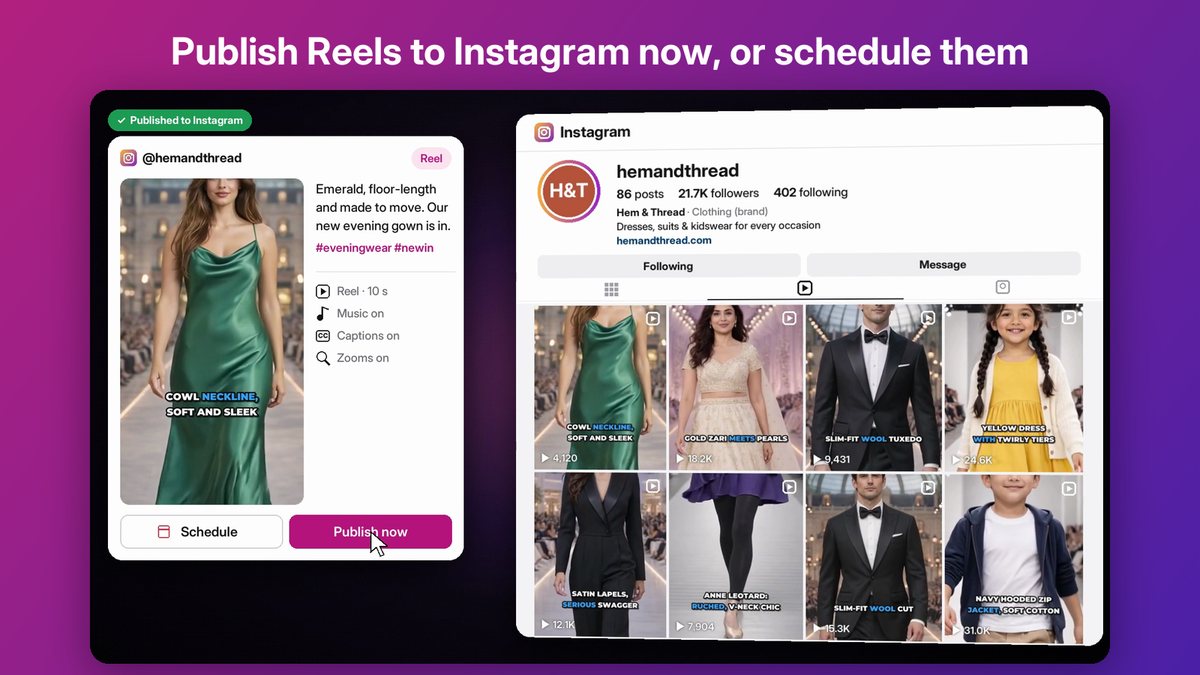
Post now or schedule for later, after you’ve seen exactly what goes out.
Don’t forget the products you already sell. Most stores don’t launch something new every week, and evergreen products deserve videos too. Turn the products already in your store into posts.
Want people in your videos?
Two newer options are worth knowing about:
- AI presenters. A realistic AI avatar holds your product and talks about it, with a natural voice, lip sync and captions. They work well for products that need explaining. What is an AI avatar video?
- AI models. For clothing and shoes, a model wears your product and walks toward the camera on a runway or a street. Virtual try-on for clothing stores, explained.
Label realistic AI people as AI where the platform asks, and never present an AI presenter as a real customer.
Common mistakes to avoid
- Starting from a poor photo. Fix the photo first; everything downstream depends on it.
- Letting AI redraw the product. Check labels, colors and shapes in every video.
- Too much text. One short line at a time.
- Ignoring the first second. If the product isn’t clear immediately, people scroll past.
- Posting in bursts. Ten videos one week and none for a month does less than three a week, every week.
- Claims you can’t back up. “Best in the world” and health claims in captions can get you into trouble with platforms and regulators.
The fastest way to do all of this
Launch Desk does these steps in one place for Shopify stores: it places your real product in studio scenes, writes the video script, makes the video with music and captions, and posts it to Instagram now or on a schedule. YouTube Shorts and TikTok posting are rolling out.
Install it from the Shopify App Store, watch the 90-second demo, or let our team do it for you.